


QR Codes in Email Campaigns: Best Practices to Bridge Desktop and Mobile
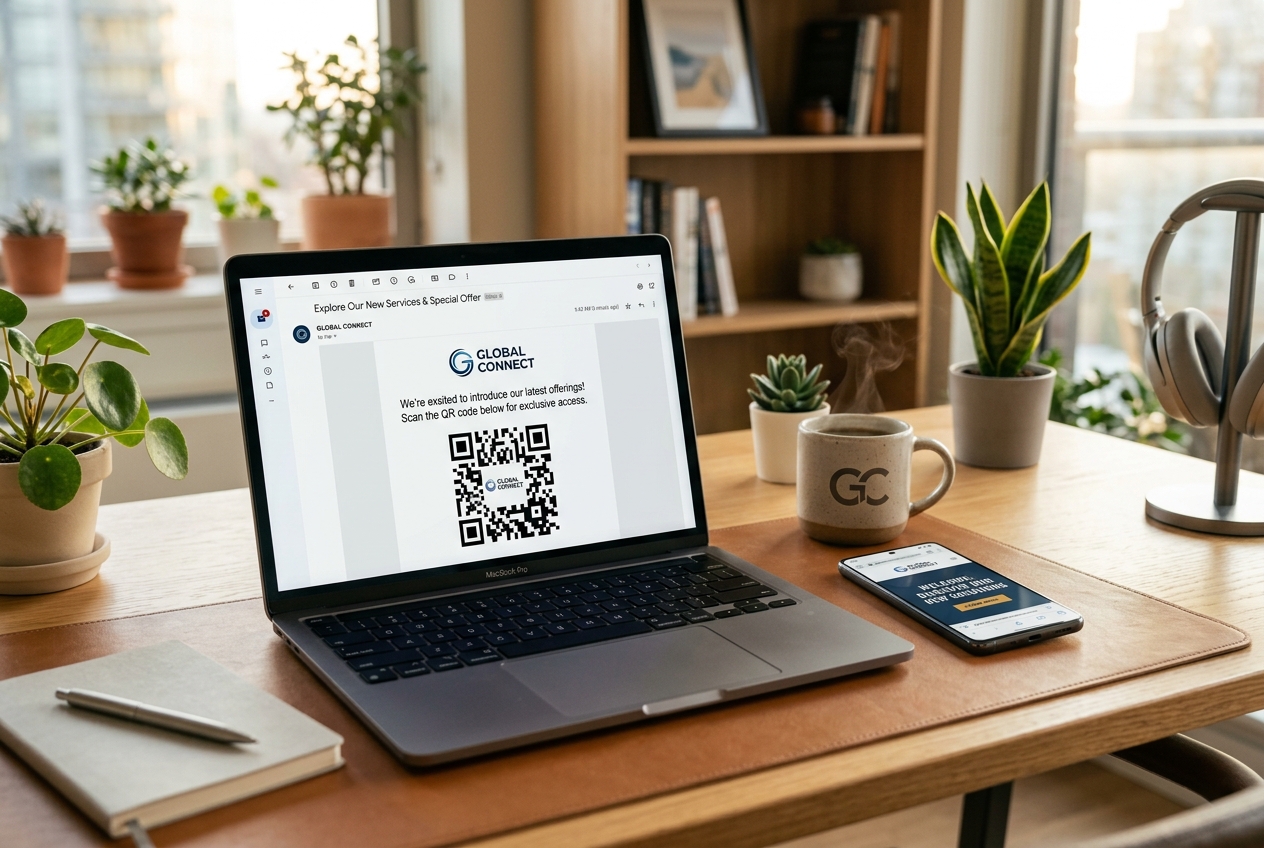
Email marketing remains one of the most effective digital channels for driving customer engagement, sales, and retention. However, email marketers face a persistent challenge: the desktop-to-mobile friction.
While up to 50% of emails are opened on mobile devices, millions of users still read their emails on desktops, laptops, or large monitors. If your email contains an action that must take place on a phone—such as downloading a mobile app, saving a digital pass to a mobile wallet, or checking into a physical location—you risk losing the customer at the desktop boundary.
Integrating dynamic QR codes into your email campaigns is a highly effective way to bridge this gap. By allowing desktop users to scan a code and instantly transition to their mobile device, you can dramatically improve conversion rates and offer a seamless multi-device experience.
In this guide, we will explore the best use cases for QR codes in email campaigns, key implementation strategies, and best practices to ensure maximum scan rates.
Why Put QR Codes in Emails?
At first glance, putting a digital link (QR code) inside another digital medium (email) might seem redundant. However, it solves a fundamental cross-device user experience problem.
When a user opens an email on a desktop computer, they cannot easily perform mobile-first tasks:
- They cannot download a mobile app directly to their computer.
- They cannot add a loyalty card or event ticket to their Apple Wallet or Google Wallet.
- They cannot easily scan a product or proceed with mobile-only authentication.
A QR code acts as a physical portal on the desktop screen. With a quick scan, the user transfers the session, transaction, or download directly to the device in their hand, eliminating the friction of manual searching or typing.
Top Use Cases for QR Codes in Email Marketing
Here are some of the most effective ways brands are using QR codes inside their newsletters and transactional emails:
1. Driving App Downloads
If you are launching a mobile app, an email announcement is a great way to let your existing subscribers know. By embedding an app download QR code, desktop viewers can scan the code to instantly open the iOS App Store or Google Play Store on their phones. Combined with QR Zam's device-based smart routing, you only need to display a single QR code that automatically redirects users to the correct store.
2. Saving Digital Wallet Passes
Whether you are distributing loyalty cards, digital membership passes, boarding passes, or event tickets, users want these in their mobile wallets for easy access. Adding a QR code to the confirmation email allows desktop readers to scan and instantly save the pass to Apple Wallet or Google Wallet.
3. Desktop-to-Mobile Authentication (Magic Login)
If you run a SaaS platform, a mobile app, or an e-commerce store, logging in on a new device can be tedious. You can send a security or verification email containing a secure, short-lived dynamic QR code. Scanning the code automatically logs the user in on their mobile browser or app, bypassing password requirements.
4. Seamless Mobile Payments
If your email campaigns focus on billing, invoices, or donation drives, you can embed a payment QR code. When scanned, it opens a mobile-optimized checkout page with pre-filled details, allowing the user to pay in seconds using Apple Pay, Google Pay, or mobile banking apps.
Best Practices for Using QR Codes in Email Campaigns
To ensure your email QR codes are effective and do not disrupt the user experience, follow these essential design and technical guidelines:
1. Always Provide a Clickable Alternative
A user reading your email on their smartphone cannot scan a QR code on their own screen. Therefore, you must always make the QR code itself clickable, or include a clear hyperlink right next to it.
- Example Call-to-Action: "Scanning from your desktop? Use the QR code below. Reading on your phone? Click here to download instead."
2. Use Dynamic QR Codes
Never use static QR codes in your emails. If the destination link changes (e.g., a promo ends or you update your app store links), a static QR code will break, and you cannot edit it after the email is sent. With dynamic QR codes from QR Zam, you can update the destination URL at any time, even after the email lands in your subscribers' inboxes.
3. Maintain High Contrast and Keep Dark Mode in Mind
Many email clients and users prefer dark mode. If your QR code has a transparent background, it may become unreadable when the email client flips the background color to black.
- The Fix: Always generate your QR code with a solid white background block and a generous border (quiet zone) to ensure it remains scannable regardless of the user's theme settings.
4. Keep the Design Clean
Avoid overloading your QR code with too much encoded data, which makes the pattern dense and difficult to scan. Keep the destination URL short by using a custom domain or a tracking link. You can customize the colors and add your company logo using the QR Zam design tools to make the code look integrated and trustworthy.
How to Set Up an Email QR Code Campaign with QR Zam
- Generate a Dynamic URL QR Code: Log into your QR Zam dashboard and create a new dynamic QR code pointing to your target destination.
- Add Smart Routing (Optional): If you are promoting an app, configure smart routing rules to detect the scanner's OS (iOS vs. Android) and redirect them accordingly.
- Customize the Design: Add your logo, choose brand colors, and export the file as a high-resolution PNG or SVG. Ensure it has a white quiet zone surrounding the pattern.
- Insert into Email Template: Add the image to your email template. Wrap the image in a hyperlink pointing to the target URL so mobile readers can click it directly.
- Track Performance: Monitor scan analytics in QR Zam to see how many desktop users transitioned to mobile, tracking time of scan, device type, and location.
Frequently Asked Questions
1. Will QR codes in emails trigger spam filters?
No, email clients do not penalize emails containing QR codes as long as the image is hosted on a secure, reliable server and the email contains a healthy balance of text and image content. Avoid sending emails that consist only of a single large image or QR code.
2. What size should the QR code be in the email?
For optimal scanning on desktop monitors, the QR code should be displayed at a minimum size of 150px by 150px. Avoid making it too small, or users will struggle to focus their phone cameras on it.
3. Should I use custom branding on email QR codes?
Yes. Custom branded QR codes (featuring brand colors and a logo) build trust. Users are more likely to scan a QR code that looks like it belongs to your brand rather than a generic black-and-white block, which could be perceived as a security risk.