


How to Track Offline Conversions in Your CRM with QR Codes and Webhooks
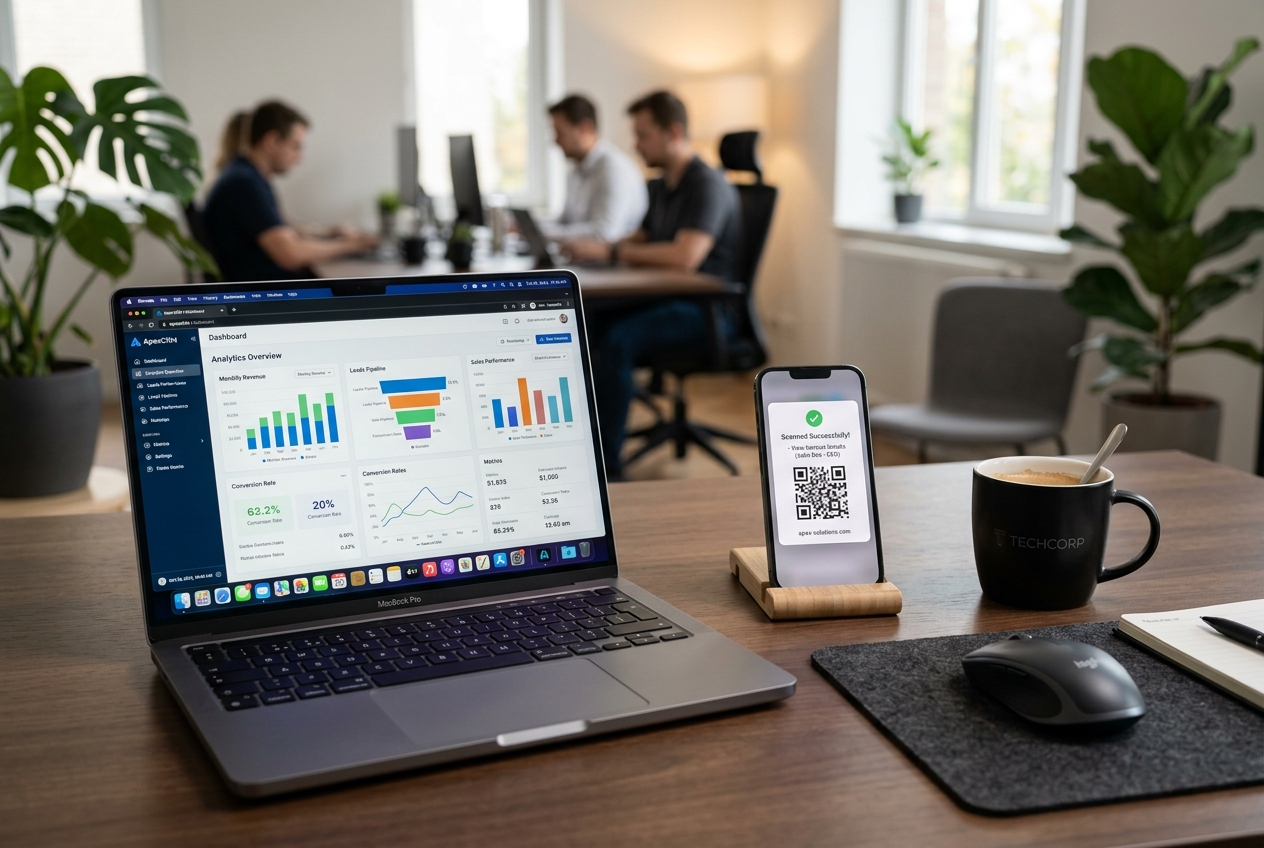
One of the greatest challenges in offline marketing—whether it's direct mail, print ads, event banners, or flyers—is attribution. In digital campaigns, tracking a click to a lead or sale is simple. But when a customer interacts with a physical marketing asset, how do you attribute that conversion in your Customer Relationship Management (CRM) system?
Without accurate offline tracking, you're flying blind. You cannot calculate your customer acquisition cost (CAC) or return on investment (ROI) for printed materials.
Fortunately, by combining dynamic QR codes with modern automation tools like webhooks, you can bridge this physical-digital divide. You can instantly capture scan events in the real world and log them as tracked activities or lead updates directly inside HubSpot, Salesforce, Zoho, or any custom CRM.
In this guide, we will walk you through how to set up offline conversion tracking using QR Zam's dynamic QR codes and webhook system.
The Concept: How QR-to-CRM Tracking Works
Before diving into the setup, let's understand the flow of data from a physical scan to a CRM update:
[ Physical Print Ad ]
         │ (Customer scans QR Code)
         ▼
[ QR Zam Dynamic Server ] ───► (User redirected to landing page with UTMs)
         │
         │ (Generates Webhook Event in real-time)
         ▼
[ Webhook Listener / Automation Tool ] (Zapier, Make, or custom endpoint)
         │
         │ (Formats and sends data)
         ▼
[ CRM System (HubSpot/Salesforce) ] (Creates/Updates Contact, Logs Activity)
- The Scan: A customer scans a dynamic QR code printed on a brochure or poster.
- The Server Log: The dynamic QR code sends the scanner to the QR Zam redirect server first.
- The Webhook Trigger: Instantly, QR Zam fires a webhook payload containing details about the scan (timestamp, device type, location, and the specific QR code scanned).
- The Integration: An automation platform (like Zapier, Make, or a custom API gateway) listens to the webhook.
- The CRM Update: The integration matches the scanned QR code to the campaign, looks up or creates the contact in your CRM, and logs a "QR Scan" event.
Step 1: Create a Dynamic QR Code with UTM Parameters
First, you need a trackable destination URL. Do not link directly to your homepage; instead, use UTM parameters to pass campaign details to your analytics.
- Go to the QR Zam Generator.
- Choose Dynamic URL.
- Enter your destination URL with UTM parameters. For example:
https://yoursite.com/landing-page?utm_source=print&utm_medium=flyer&utm_campaign=summer_promo - Style your QR code to match your branding (add your logo, custom colors, and frames).
- Save the QR code and assign it to a category (e.g., "Summer Brochure").
!TIP Always use dynamic QR codes. If you need to change the destination URL, UTM tags, or offers after printing, you can do it from your dashboard without changing the physical code.
Step 2: Set Up Webhooks in QR Zam
A webhook is an HTTP POST request triggered by an event. In our case, every time someone scans your QR code, QR Zam will send a JSON payload to a URL of your choice.
To configure webhooks in QR Zam:
- Log in to your QR Zam Dashboard.
- Navigate to Developer Settings > Webhooks.
- Click Create Webhook.
- Enter the URL of your webhook listener (we will generate this in the next step).
- Select the trigger event:
qr_code.scanned. - Save the configuration.
Example Webhook Payload
Here is the JSON structure QR Zam sends when a scan occurs:
{
    "event": "qr_code.scanned",
    "timestamp": "2026-06-29T09:00:24Z",
    "qr_code_id": "qr_abc123xyz",
    "qr_code_name": "Summer Brochure Flyer A",
    "campaign_name": "Summer 2026 Promo",
    "scanner": {
        "ip_address": "192.168.1.100",
        "location": {
            "country": "Vietnam",
            "city": "Ho Chi Minh City"
        },
        "device": {
            "os": "iOS",
            "browser": "Safari",
            "type": "mobile"
        }
    }
}
Step 3: Configure Your Automation Listener (Zapier or Make)
If you don't want to write custom code, you can use Zapier or Make (formerly Integromat) to handle the webhook and update your CRM.
Option A: Using Zapier
- Trigger: Select Webhooks by Zapier and choose Catch Hook. Zapier will provide you with a unique URL. Paste this URL into your QR Zam webhook settings.
- Action (Search): Search HubSpot or Salesforce for an existing contact. Use the email address or phone number if they fill out a form on the landing page, or check the IP location to estimate.
- Action (Create/Update): If the contact exists, update their record. Add a custom field update like
Latest Campaign Source: QR Summer Promo. - Action (Log Activity): Create a new task or custom activity on the contact's timeline:
Scanned QR Code: Summer Brochure Flyer A on 2026-06-29.
Option B: Writing a Custom API Handler (for Developers)
If you have a custom CRM or want to avoid third-party costs, you can write a simple Node.js or Python API endpoint to receive the webhook directly:
const express = require("express")
const app = express()
app.use(express.json())

app.post("/qr-webhook", async (req, res) => {
    const { event, qr_code_name, scanner } = req.body

    if (event === "qr_code.scanned") {
        console.log(`QR code "${qr_code_name}" scanned in ${scanner.location.city}`)

        // Code to authenticate with Salesforce/Hubspot API
        // Code to find/update contact or log transaction
    }

    res.status(200).send("Event logged successfully")
})

app.listen(3000, () => console.log("Listening for QR Zam Webhooks..."))
Step 4: Connecting the Loop with Landing Page Submissions
A simple QR scan tells you that someone was interested, but it doesn't give you their personal contact info (due to privacy laws, scans only capture metadata like device and general location).
To tie a QR scan to a specific contact in your CRM:
- Pass the Scan ID: When a user scans the QR code, redirect them to a landing page with a unique scan ID query parameter (
?scan_id=xyz). - Store the ID in a Cookie: Use a short JavaScript script on your website to store that
scan_idin the user's browser session. - Submit the Lead Form: When the user fills out a form on your landing page (e.g., for a discount code or quote), submit the
scan_idas a hidden form field. - Sync in CRM: Your CRM will receive the form entry along with the
scan_id. Your backend can then match the form submission directly to the offline scan event, providing 100% accurate attribution.
The Business Impact of QR Webhooks
By automating offline tracking, you gain powerful insights:
- Clear ROI: Measure exactly how much revenue a specific flyer or billboard generated.
- A/B Testing: Test different call-to-actions, flyers, or billboard designs in real-time.
- Instant Sales Triggers: Send a notification to your sales team as soon as a key prospect scans a personalized QR code on a proposal package.
Ready to automate your offline marketing? Try out QR Zam's API and Webhook features today and take control of your offline conversion funnel.