


How to Generate QR Codes in Microsoft Excel: A Step-by-Step Guide
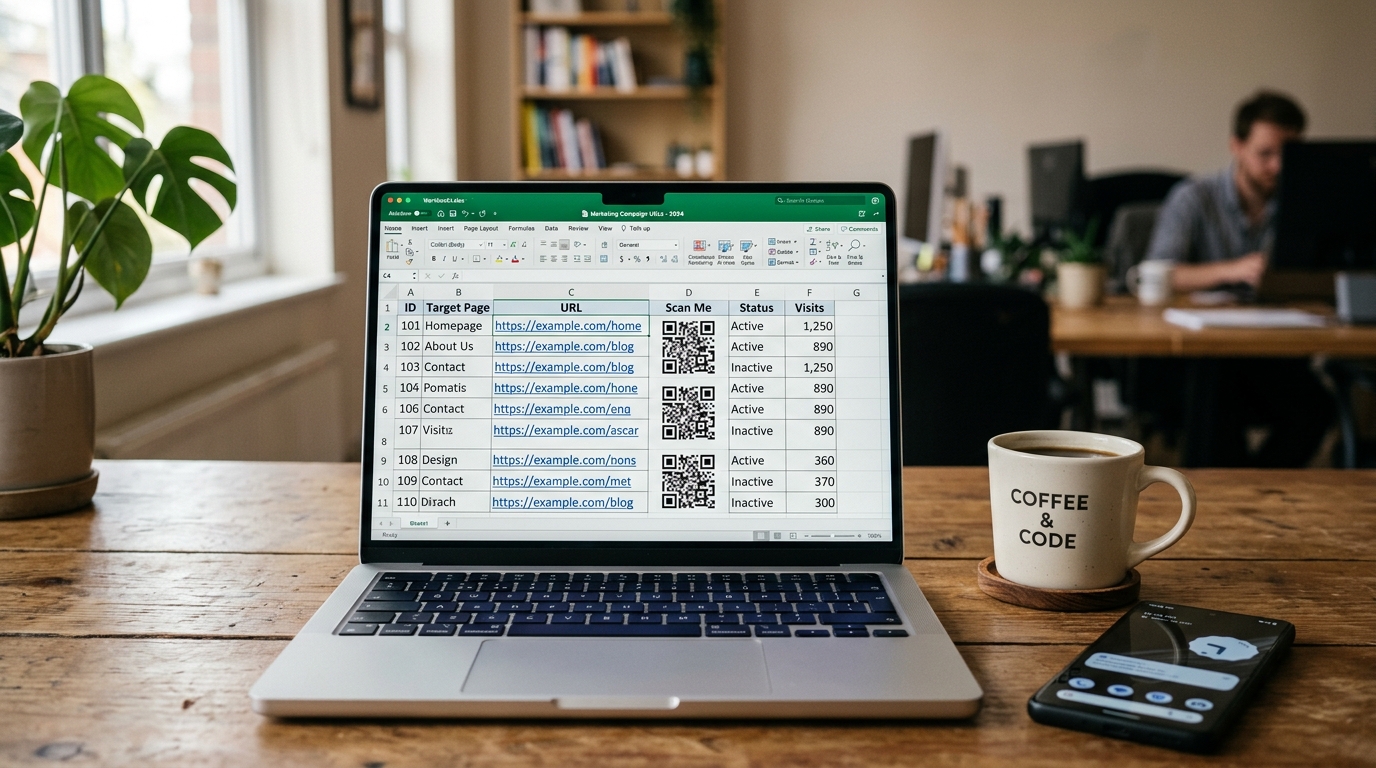
Microsoft Excel is the go-to tool for managing data, inventory lists, and customer information. However, many businesses hit a bottleneck when they need to bridge this spreadsheet data with the physical world. The solution? Generating QR codes directly from your Excel data.
Whether you are tracking assets, creating labels for retail products, or preparing marketing flyers, having QR codes tied directly to your spreadsheet rows saves hours of manual entry.
In this ultimate guide, we will walk you through the top methods to generate QR codes in Microsoft Excel, ranging from quick formula hacks to using QR Zam's professional, automated bulk QR code generator.
Method 1: Using an Image Formula (Quick & Basic)
If you only need a few static QR codes and don't require advanced tracking or high-resolution customization, you can use a combination of Excel's IMAGE function and a public API (like Google Charts API).
Step-by-Step:
- Open your Excel spreadsheet.
- In column A, list the URLs or text you want to encode (e.g.,
https://qrzam.com). - In cell B2, enter the following formula:
excel
=IMAGE("https://chart.googleapis.com/chart?chs=150x150&cht=qr&chl=" & ENCODEURL(A2)) - Press Enter. Excel will fetch and render a static QR code in cell B2.
- Drag the fill handle down to apply the formula to the remaining rows.
Limitations of this method:
- No Analytics: You cannot track scans, user locations, or devices.
- Low Resolution: These QR codes are not suitable for high-quality printing.
- Uneditable: If the destination URL changes, you must regenerate the code and reprint your labels.
- API Dependency: If the public API goes offline, your QR codes will fail to display in Excel.
Method 2: The Professional Solution — QR Zam's Excel Bulk QR Generator
For business operations, static, un-trackable QR codes are a significant risk. If a link breaks, you must reprint all your materials. Furthermore, without scan analytics, you are blind to your campaign's performance.
With QR Zam's Bulk QR Code Generator, you can instantly convert your Excel file into thousands of customized, dynamic, high-resolution QR codes in seconds.
Why choose QR Zam for Excel bulk generation?
- Dynamic QR Codes: Edit the destination URLs at any time, even after the QR codes are printed.
- Real-Time Analytics: Track scan volume, location, date, time, operating system, and device type.
- Vector Formats (SVG/PDF): Download your QR codes in print-ready vector formats for clean, crisp prints at any scale.
- Custom Branding: Add your company logo, choose brand colors, and configure unique frame designs.
How to generate QR codes in bulk with QR Zam:
- Prepare Your Spreadsheet: Create an Excel sheet with the following column headers:
Name: The label for identifying your QR code.URL: The destination link.Type: SpecifyDynamicorStatic.Folder(Optional): The category folder in your QR Zam dashboard.
- Export to CSV: Save your Excel sheet as a
.csvfile. - Upload to QR Zam: Log in to your QR Zam account, navigate to the Bulk Generator, and upload your CSV file.
- Customize the Design: Select your brand colors, upload a logo, and choose a frame template.
- Download the Batch: QR Zam will process the file in seconds and output a compressed ZIP archive containing all your QR codes as separate files (PNG, SVG, or PDF), ready for print.
Which Method is Right for Your Business?
| Feature | Excel Image Formula | QR Zam Bulk Generator |
|---|---|---|
| Setup Speed | Fast (Formula-based) | Instant (Upload-based) |
| Max Capacity | Low (Excel performance degrades) | Unlimited (Thousands of codes in seconds) |
| Dynamic Editing | ❌ No | Yes (Update URL anytime) |
| Scan Analytics | ❌ No | Yes (Detailed tracking) |
| Print Quality | Low (Raster image) | High (Vector SVG/PDF available) |
| Custom Branding | ❌ No (Black/White only) | Yes (Logo, colors, frames) |
Boost Your Workflow with QR Zam
Managing physical assets or running localized marketing campaigns shouldn't require manual work. By integrating Microsoft Excel with QR Zam, you gain the benefits of spreadsheet organization alongside the powerful capabilities of dynamic, trackable QR codes.
Ready to automate your workflow? Sign up for a free QR Zam account today and generate your first batch of dynamic QR codes in seconds!