


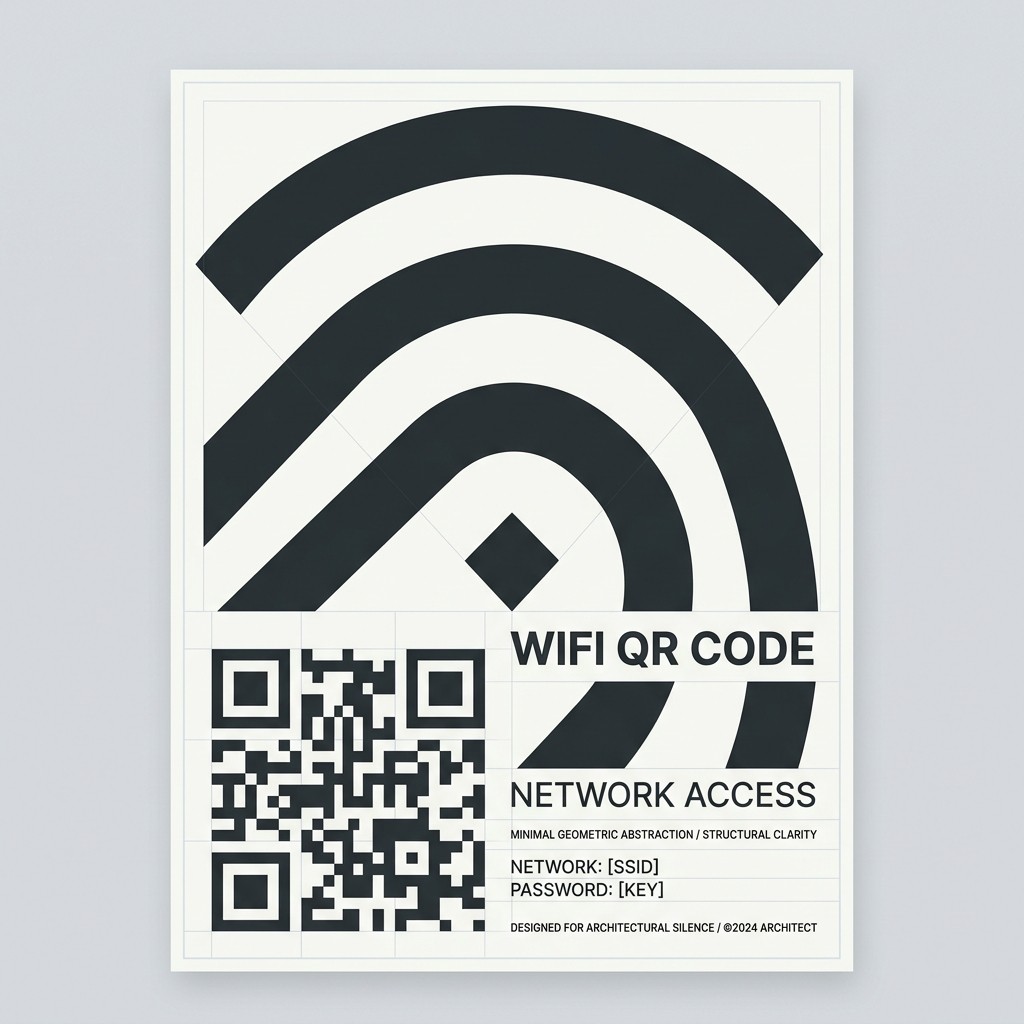
Sharing your WiFi password with customers, guests, or clients can be a hassle. Spelling out complex passwords with special characters often leads to typos, frustration, and extra work for your staff.
The easiest solution? Create a WiFi QR code. By scanning a simple code with their smartphone camera, your guests can connect to your network instantly—no password typing required.
In this guide, we'll show you how to create a custom WiFi QR code in less than 2 minutes using QR Zam.
TL;DR
Go to QR Zam and log in, select WiFi as the type, enter your network name (SSID) and password, customize the design to match your brand, and download it for printing. Put it on table tents or signboards so guests can scan and connect instantly.
Why Your Business Needs a WiFi QR Code
If you run a café, coworking space, hotel, restaurant, or retail store, offering free WiFi is a standard customer expectation. However, traditional password sharing has major drawbacks:
1. Eliminates Password Typos
"Is that a capital 'I' or a lowercase 'l'?" "Is there a space?" WiFi QR codes remove human error completely. One scan, and the phone connects automatically.
2. Speeds Up Customer Service
Your front-desk staff or baristas get asked "What is the WiFi password?" dozens of times a day. A prominent WiFi QR code frees up your team to focus on serving customers.
3. Boosts Brand Aesthetics
Instead of writing your password on a messy chalkboard or sticky note, you can design a beautiful, branded QR code stand that complements your interior design.
4. Enhances Security
You don't need to write your password in plain text on the wall. The QR code contains the credentials in a secure format, making it harder for unauthorized neighbors to copy and share the text password.
How to Create a WiFi QR Code (Step-by-Step)
Creating a WiFi QR code is completely free and takes just a few steps on QR Zam.
Step 1: Gather Your Network Details
Before you generate the code, make sure you have the exact credentials:
- Network Name (SSID): The exact name of your WiFi network (case-sensitive).
- Password: The password for the network.
- Network Encryption Type: Usually WPA/WPA2 for modern networks. (If your network has no password, select "None").
Step 2: Generate the Code on QR Zam
- Go to the QR Zam App (or select the WiFi generator from the homepage).
- Choose the WiFi tab.
- Enter your SSID (Network Name) and Password.
- Select your Encryption Type (WPA/WPA2 is recommended for most setups).
- (Optional) If you want to track analytics or update the destination later, you can also redirect users to a custom landing page with "WiFi Connect" instructions using a Dynamic QR Code. For standard instant connection, the static WiFi code works natively offline!
Step 3: Customize and Brand Your QR Code
Make the QR code look professional and trustworthy:
- Add a Logo: Place your business logo in the center of the QR code.
- Select Brand Colors: Customize the color of the dots and background. Ensure there is high contrast so cameras scan it instantly.
- Add a Frame: Pick a frame that says "Scan for Free WiFi" or "Connect to WiFi".
Step 4: Download in High Resolution
- Download the QR code as an SVG file for printing (allows resizing to any scale without pixelation).
- Save a PNG copy for digital displays or menus.
Best Placements for WiFi QR Codes
Where should you place your new QR code? Here are the most effective locations:
| Business Type | Recommended Placement | Tip |
|---|---|---|
| Cafés & Restaurants | Table tents, menu back cover, or napkin holders | Keep the code size at least 3x3 cm. |
| Hotels & B&Bs | In the guest welcome book, keycard sleeves, or bedside tables | Provide a small instruction note: "Scan for free guest WiFi". |
| Co-working Spaces | Reception desk, conference room walls, and phone booths | Use large acrylic stands for high visibility. |
| Retail Stores | Near the checkout counter or waiting benches | Combine with a promotion or newsletter signup. |
Pro Tips for WiFi QR Codes
To ensure the best experience for your guests, keep these best practices in mind:
- Test Before Printing: Always test the printed QR code with both Android and iOS devices. iPhone users scan with the default Camera app, while Android users can scan using their camera or Quick Settings WiFi scanner.
- Keep High Contrast: Avoid light-colored dots on a light background. Stick to dark colors (navy, charcoal, forest green) on a clean white background.
- SSID Case Sensitivity: Remember that SSIDs are case-sensitive. "MyCafe_WiFi" is not the same as "mycafe_wifi". Double-check spelling before printing.
- Use Sturdy Materials: Paper prints can easily get dirty or crumpled. Print your QR codes on high-quality cardstock and place them in acrylic stands or wooden holders to keep them clean.
Frequently Asked Questions
Is creating a WiFi QR code free?
Yes! Static WiFi QR codes are 100% free to create and scan on QR Zam, with no limits or expiration dates.
Do guests need a special app to scan the code?
No. Modern smartphones running iOS 11+ and Android 9+ have native QR code scanners built into their default camera apps. Guests just point their camera and tap the banner that pops up.
What happens if I change my WiFi password?
Because static WiFi QR codes embed the credentials directly into the code, you will need to generate and print a new QR code if you change your password.
- Alternative: You can use a Dynamic URL QR Code from QR Zam that points to a simple landing page. This page can display the updated WiFi password or run a portal. When the password changes, you simply update the landing page on the QR Zam dashboard without reprinting the physical QR stands!
Does this work for hidden networks?
Yes. When entering your network details on QR Zam, simply check the "Hidden Network" box, and the generator will configure the code to connect to hidden SSIDs.
Ready to Streamline Guest WiFi?
Don't make your customers type another long password. Create your beautiful, custom WiFi QR code today and level up your customer experience.