


How to Create a Spotify QR Code: The Ultimate Guide for Artists and Fans
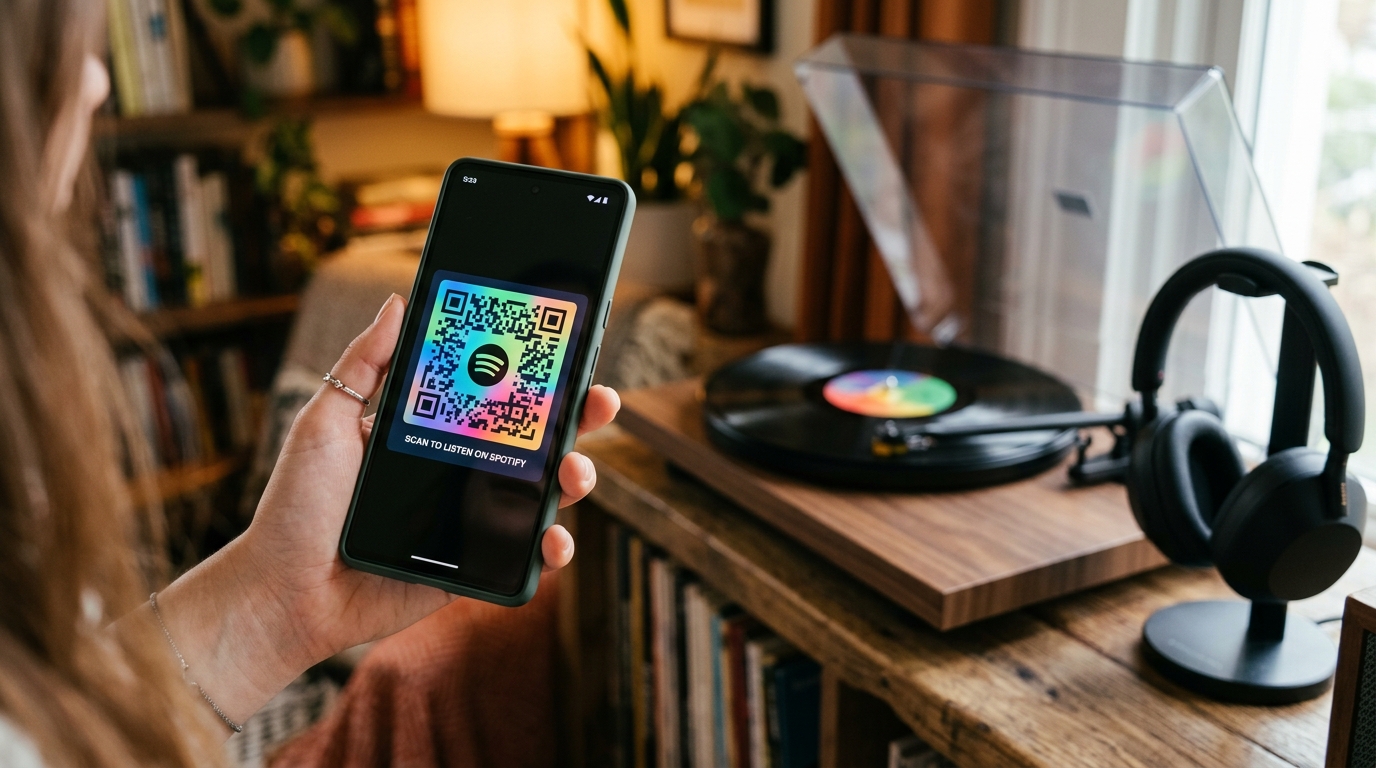
In the modern digital music landscape, getting your music heard is harder than ever. Millions of tracks are uploaded to streaming platforms daily, and capturing an audience's attention requires reducing every possible barrier to entry.
Whether you are an indie artist promoting a new single, a podcaster looking to grow your listener base, or a music lover sharing a curated playlist, directing people to your Spotify page from the physical world can be challenging. Expecting someone to open Spotify, tap the search icon, and type in your name or title manually is a recipe for lost traffic.
The most effective way to bridge the physical-to-digital gap is by creating a custom Spotify QR code.
In this comprehensive guide, we will discuss why QR codes are essential for music marketing, how they compare to native Spotify Codes, and how you can create your own custom Spotify QR code in under two minutes using QR Zam.
Spotify Codes vs. Standard QR Codes: What is the Difference?
If you use Spotify regularly, you might have noticed "Spotify Codes"—those soundwave-like graphics that appear under album artwork in the app. While they look sleek, they have significant limitations compared to standard QR codes:
| Feature | Spotify Codes | Standard QR Codes (QR Zam) |
|---|---|---|
| Scanner Required | Spotify App search camera only | Any native smartphone camera |
| Custom Styling | In-app default style only | Custom colors, logos, frames, and shapes |
| Editability | Static (cannot change destination) | Dynamic (change link without reprint) |
| Scan Analytics | None | Real-time tracking (location, device, time) |
| Multilingual Routing | No | Yes, via Smart Routing |
Because standard QR codes can be scanned by anyone using their phone's built-in camera app, they have a significantly lower barrier to entry. Users do not need to have the Spotify app open or even installed to scan the code—they will be directed to Spotify's web player or prompted to open the app automatically.
Why Music Artists and Podcasters Need QR Codes
Integrating custom QR codes into your marketing campaigns offers massive advantages for content creators:
1. Frictionless Stream Promotion
Print your QR code on posters, flyers, stickers, or banners at live gigs. Fans who enjoy your performance can scan it instantly to follow your profile, pre-save your upcoming album, or listen to your set playlist on their journey home.
2. High-Yield Merchandise Integration
T-shirts, hoodies, and physical albums (vinyl, CDs) are prime real estate for QR codes. Adding a styled QR code to your merch tags or back print makes your apparel interactive, turning every fan wearing your merch into a walking billboard for your music.
3. Comprehensive Analytics Tracking
With a Dynamic Spotify QR code, you don't just put a link out into the wild and hope for the best. You can track exactly how many scans your codes receive, which cities your listeners are located in, what time of day they scan most, and whether they scan from iOS or Android devices. This data is invaluable for planning tours and targeting ads.
How to Create a Spotify QR Code (Step-by-Step)
Generating a customized, high-converting Spotify QR code is fast and simple on QR Zam.
Step 1: Copy Your Spotify URL
First, locate the link to the content you want to share.
- Open the Spotify app on your phone or desktop.
- Navigate to your desired Artist Profile, Album, Playlist, Track, or Podcast Episode.
- Click the three dots icon next to it.
- Select Share and click Copy Link.
(Example URL structure: https://open.spotify.com/playlist/37i9dQZF1DXcBWIGo7hRjR)
Step 2: Choose Your QR Code Type
Go to QR Zam and decide whether you want to create a static or dynamic QR code:
- Static Spotify QR Code: Free and permanent. The Spotify URL is embedded directly into the pattern. However, you cannot change the destination URL in the future, and you will not get scan statistics.
- Dynamic Spotify QR Code: Highly recommended for professional campaigns. You can edit the URL at any time (e.g., redirecting the same printed QR code from your old single to your new album release) and access detailed scan analytics.
Step 3: Input the Link on QR Zam
- Select the URL category on the QR Zam generator dashboard.
- Paste your copied Spotify link into the input field.
Step 4: Customize the Aesthetics
Standard black-and-white QR codes are easily ignored. Customize your code to match your music brand:
- Insert the Spotify Logo: Upload the classic green Spotify logo or a custom icon to the center of the QR code. This gives users immediate context about where the code leads.
- Adjust Colors: Match the QR code color scheme to your album cover art or band branding. Ensure there is high contrast between the foreground pattern and the background for optimal readability.
- Add a CTA Frame: Use a frame with an engaging call-to-action like "Scan to Listen" or "Listen on Spotify" to encourage scans.
Step 5: Test and Download
Always test your generated QR code on multiple mobile devices before printing. Once verified:
- Download as SVG for large physical print assets (banners, posters, t-shirts) as it scales infinitely without pixelating.
- Download as PNG for digital marketing materials (email newsletters, website widgets, social media graphics).
Ready to expand your digital listener base? Generate your custom Spotify QR code with QR Zam today!