


How to Create a QR Code for Zoom Meetings: A Step-by-Step Guide
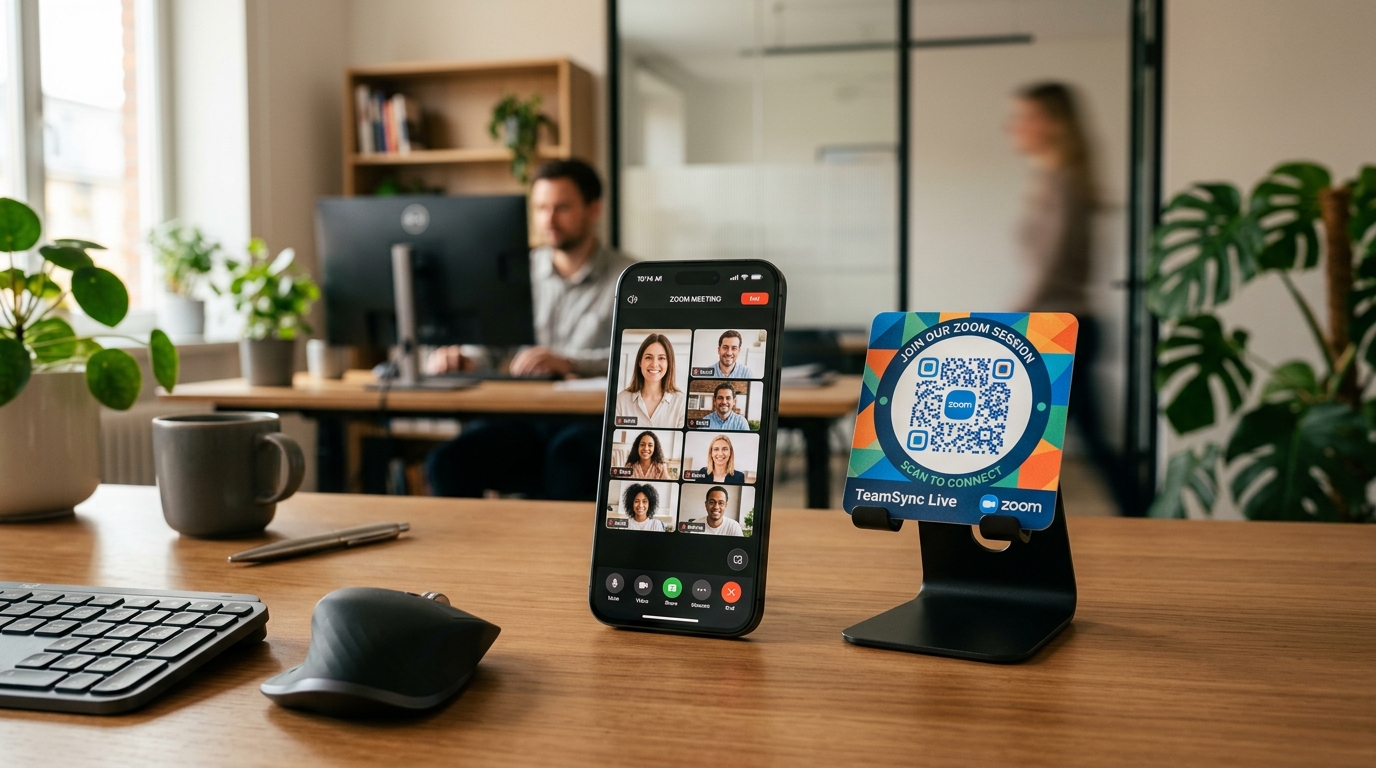
In today's digital and hybrid world, virtual meetings, webinars, and online classes have become essential. While platforms like Zoom make connecting easy, getting participants to join without friction can still be a challenge. Copying and pasting long URLs, typing complex Meeting IDs, and entering passcode digits can lead to delays and frustrated attendees.
An easy and professional solution is to create a QR code for your Zoom meetings.
By simply scanning a QR code with their mobile devices or tablets, participants can bypass manual entry and join your Zoom meeting in a single second.
In this step-by-step guide, we will show you how to create static and dynamic Zoom meeting QR codes, why dynamic options are critical for virtual events, and how to optimize your setup using QR Zam.
The Benefits of Using QR Codes for Zoom Meetings
Integrating QR codes into your online event promotion or team workflow offers several key advantages:
1. Instant, Frictionless Access
No more manual typing. Scanners are instantly directed to the Zoom app or browser page, joining the meeting room immediately.
2. Streamlined Print Promotion
If you are advertising a webinar, conference, or class on physical materials—such as flyers, posters, brochures, or letters—you cannot expect users to type a 100-character URL. A QR code bridges the physical-to-digital gap effortlessly.
3. Updatable Links (Dynamic QR Codes)
If you use a dynamic QR code, you can change the target Zoom link at any time in your dashboard without changing the printed QR code pattern. If a meeting gets rescheduled, or if you need to use a different Zoom room, you do not need to reprint your flyers.
4. Scan Analytics & Tracking
By using QR Zam's tracking and analytics, you can monitor how many people scanned your code, their location, and what devices they used. This provides valuable data on attendee engagement.
Step-by-Step: How to Create a Zoom QR Code
Creating a Zoom QR code takes less than two minutes. Follow these simple steps:
Step 1: Copy Your Zoom Meeting Link
First, open Zoom and copy the invitation link for your scheduled meeting:
- Go to your Meetings tab.
- Select your scheduled meeting.
- Click Copy Invitation or copy the Join Link directly (e.g.,
https://us02web.zoom.us/j/123456789?pwd=xxxx).
Step 2: Choose Your QR Code Type on QR Zam
Go to QR Zam and log into your dashboard:
- Choose Dynamic QR Code (Recommended): This allows you to update the meeting URL later if the meeting gets rescheduled, and tracks scan analytics.
- Choose Static QR Code: Good for permanent, one-off meetings where the URL will never change and tracking is not needed.
Select the URL generator option.
Step 3: Enter Your Zoom URL
Paste the copied Zoom Join Link into the URL field. Make sure it includes the password parameter (?pwd=...) so that users are automatically authenticated and do not have to type the password manually.
Step 4: Customize the QR Design
Make your QR code recognizable and branded:
- Add the Zoom Logo: Upload the Zoom icon and place it in the center of the QR code so users immediately know where the code leads.
- Brand Colors: Customize the code's colors to match your brand or the blue Zoom aesthetic.
- Call-to-Action Frame: Add a frame with text like "Scan to Join" or "Join Meeting".
Step 5: Download and Test
Download your QR code in high-resolution format (SVG is recommended for print, PNG for digital use). Before sharing, scan it with your phone to verify it opens the Zoom application and joins the meeting correctly.
Advanced Tip: Leverage Smart Routing for Virtual Events
With QR Zam's Smart Routing feature, you can build a more intelligent flow for your participants:
- Time-Based Redirection: Route scanners to a registration page before the event starts, to the live Zoom room during the event, and to a feedback form or recording page after the event finishes—all using the same printed QR code.
- Device-Based Redirection: Detect whether the user is scanning from a phone or computer to offer the most compatible joining option (e.g., launching the Zoom App on mobile or redirecting to the browser client on desktop).
Best Practices for Zoom QR Codes
To ensure a smooth experience for all participants, follow these best practices:
- Always include the password parameters in the URL so scanners bypass passcode entry prompts.
- Keep the QR code scan size adequate: Ensure the QR code is at least 2 x 2 cm when printed on paper so standard cameras can scan it easily.
- Add a clear Call-to-Action: Never print a naked QR code. A simple "Scan to Join Virtual Event" increases scan rates significantly.
Get Started with QR Zam Today
Ready to simplify your virtual event workflows? Use QR Zam to create your dynamic, branded Zoom QR codes. Connect teams, students, and webinar attendees instantly with a single scan.