


How to Create a QR Code for Google Sheets: Step-by-Step Guide
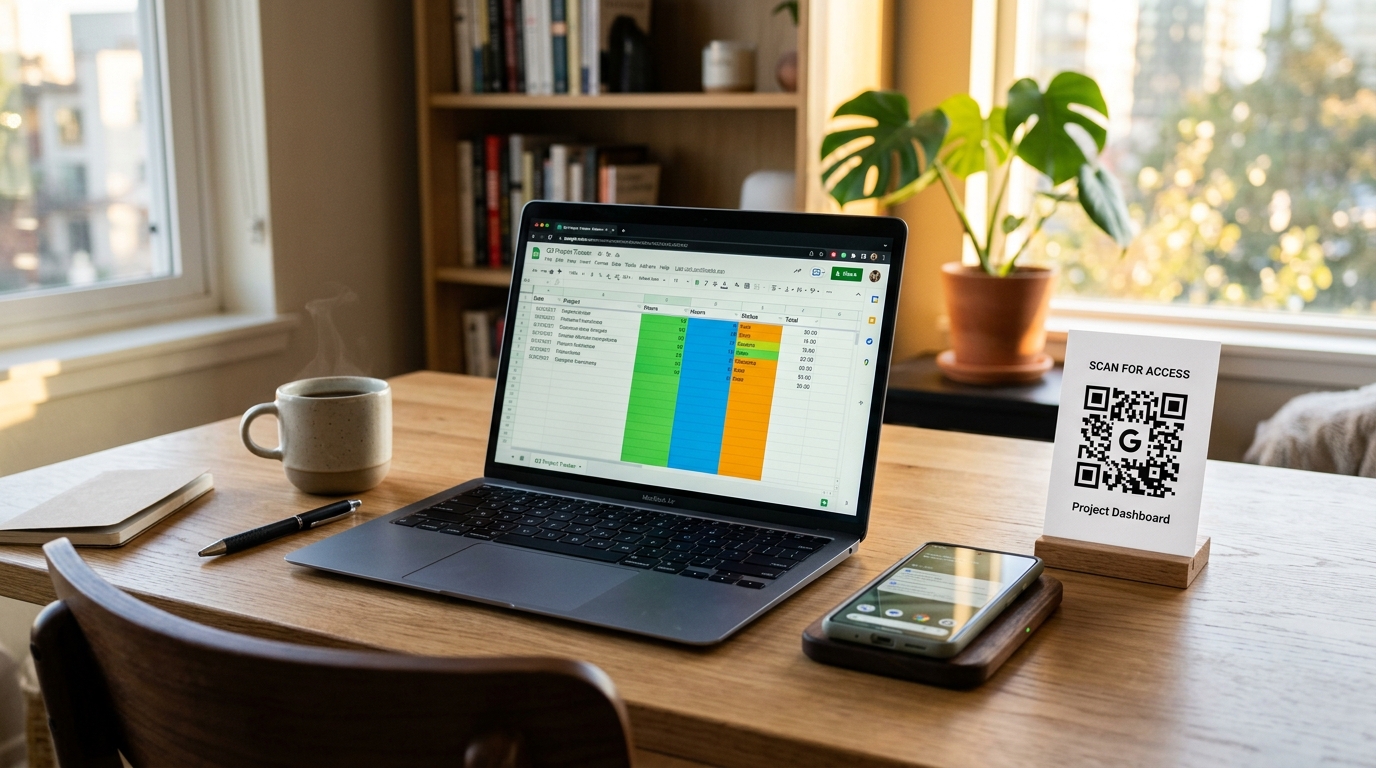
Google Sheets is one of the most powerful and widely used tools for organizing data, tracking projects, managing inventories, and collaborating in real-time. But what is the best way to share a spreadsheet with people in the physical world?
Whether you want to share a restaurant menu, a weekly event schedule, an inventory sheet on a warehouse shelf, or a sign-in sheet at a conference, typing a long, complex Google Sheets URL is a major friction point.
A Google Sheets QR code bridges this gap instantly. By scanning a custom QR code with their mobile cameras, your team, customers, or event attendees can access your spreadsheet in a single tap.
In this guide, we will walk you through how to create a QR code for Google Sheets, explain the difference between static and dynamic codes, and show how you can brand and track your codes using QR Zam.
Step 1: Prepare Your Google Sheets Document
Before generating your QR code, you need to configure the sharing settings of your Google Sheet. If your permissions are restricted, users who scan the QR code will see an "Access Denied" page.
- Open your spreadsheet in Google Sheets.
- Click the blue Share button in the top-right corner.
- Under General Access, change the setting from Restricted to Anyone with the link.
- Choose the appropriate role for your audience:
- Viewer: Select this if you only want people to read the data (e.g., a restaurant menu, schedule, or price list).
- Commenter: Select this if you want people to view and leave comments.
- Editor: Select this if you want people to enter or edit data (e.g., a collaborative sign-in sheet or inventory count).
- Click Copy link and then click Done.
Step 2: Go to QR Zam and Choose Your QR Code Type
Now that you have your spreadsheet link, head over to QR Zam. You will need to choose between two main types of QR codes: Static and Dynamic.
Option A: Static QR Code (Free & Basic)
A static QR code encodes your Google Sheets URL directly into the code structure.
- Pros: It is free to create and never expires.
- Cons: The QR code pattern will be very dense because Google Sheets URLs are long. Most importantly, you cannot change the spreadsheet URL later without reprinting the QR code. You also cannot track scans.
Option B: Dynamic QR Code (Recommended for Businesses)
A dynamic QR code uses a short redirection link.
- Pros: The QR code pattern remains clean and easy to scan, even from a distance. You can change the target Google Sheet URL at any time without changing the physical QR code. You also get detailed scan analytics (when, where, and on what device it was scanned) and can use custom branded domains.
- Cons: Requires a paid subscription (starting at just $4.5/month on QR Zam).
Step 3: Generate Your Google Sheets QR Code
Once you've decided on the type of QR code, follow these steps to generate it on QR Zam:
- In the QR Zam dashboard, click Create QR Code.
- Select the URL category.
- Paste the Google Sheets sharing link you copied in Step 1 into the destination URL field.
- If you chose a dynamic QR code, select your custom domain (e.g.,
qr.yourbrand.com) to enhance brand trust.
Step 4: Customize the Design of Your QR Code
A plain black-and-white QR code can look generic and untrustworthy. QR Zam allows you to customize your QR code design to match your brand and encourage scans.
- Branding & Colors: Customize the foreground and background colors. Use your company's official brand colors, but ensure there is high contrast for easy scanning.
- Add a Logo: Upload your company logo or a Google Sheets icon and place it in the center of the QR code. This immediately communicates to users what they are scanning.
- Select a Frame & CTA: Add a frame around the QR code with a clear Call to Action (CTA) like "Scan for Menu," "Scan to View Schedule," or "Scan for Inventory."
- Custom Shapes: Customize the eye shapes and pattern style (e.g., rounded dots instead of square blocks) for a modern, artistic look.
Step 5: Test and Download Your QR Code
Before printing or sharing your QR code, always perform a test scan:
- View the generated QR code on your computer screen.
- Scan it using different mobile devices (both iOS and Android).
- Ensure it redirects to the correct Google Sheet and displays properly on mobile screens.
- Once verified, download the code. QR Zam offers high-resolution PNG for digital use and vector formats like SVG or EPS for large-scale professional printing.
Key Benefits of Using QR Zam for Google Sheets
Creating your QR codes with a premium platform like QR Zam unlocks several key advantages:
1. Change Destination Links Instantly
Imagine printing 500 stickers for warehouse racks, only to realize the Google Sheet has been moved or replaced. With a dynamic QR code from QR Zam, you can log in, edit the target URL, and paste the new spreadsheet link in seconds. The physical stickers on your racks will work perfectly with the new sheet.
2. Custom Domain Branding
Default QR codes often redirect through generic domains, which can trigger security warnings or raise suspicion. QR Zam's Growth and Pro plans allow you to use your own custom domain (e.g., sheet.yourcompany.com). When users scan the code, they see your trusted brand name in their camera preview.
3. Detailed Scan Analytics
Measure the engagement of your campaigns. QR Zam provides real-time tracking dashboard showing:
- Total and unique scans.
- Scan distribution over time (daily, weekly, monthly).
- Geographical location of scanners (country and city).
- Device operating systems and browsers.
Common Use Cases for Google Sheets QR Codes
Here are a few ways businesses leverage QR codes linked to spreadsheets:
- Warehouse & Inventory Management: Attach QR codes to shelves or bins. Staff scan the code to update stock counts directly in a shared Google Sheet.
- Event Check-ins and Registrations: Place a QR code stand at reception. Attendees scan it to fill in their details or confirm attendance in a collaborative sheet.
- Live Event Schedules: Share schedules for conferences, music festivals, or sports leagues that update frequently throughout the day.
- Restaurant Menus and Price Lists: Keep a digital menu in a spreadsheet and link it via QR code. Update items and prices in Google Sheets, and the menu updates instantly for customers.
By combining the simplicity of QR codes with the power of Google Sheets, you can create efficient, real-time data sharing systems across your business operations. Head over to QR Zam to generate your first custom Google Sheets QR code today.