


How to Create a QR Code for a Google Calendar Event: Streamline RSVPs and Attendance
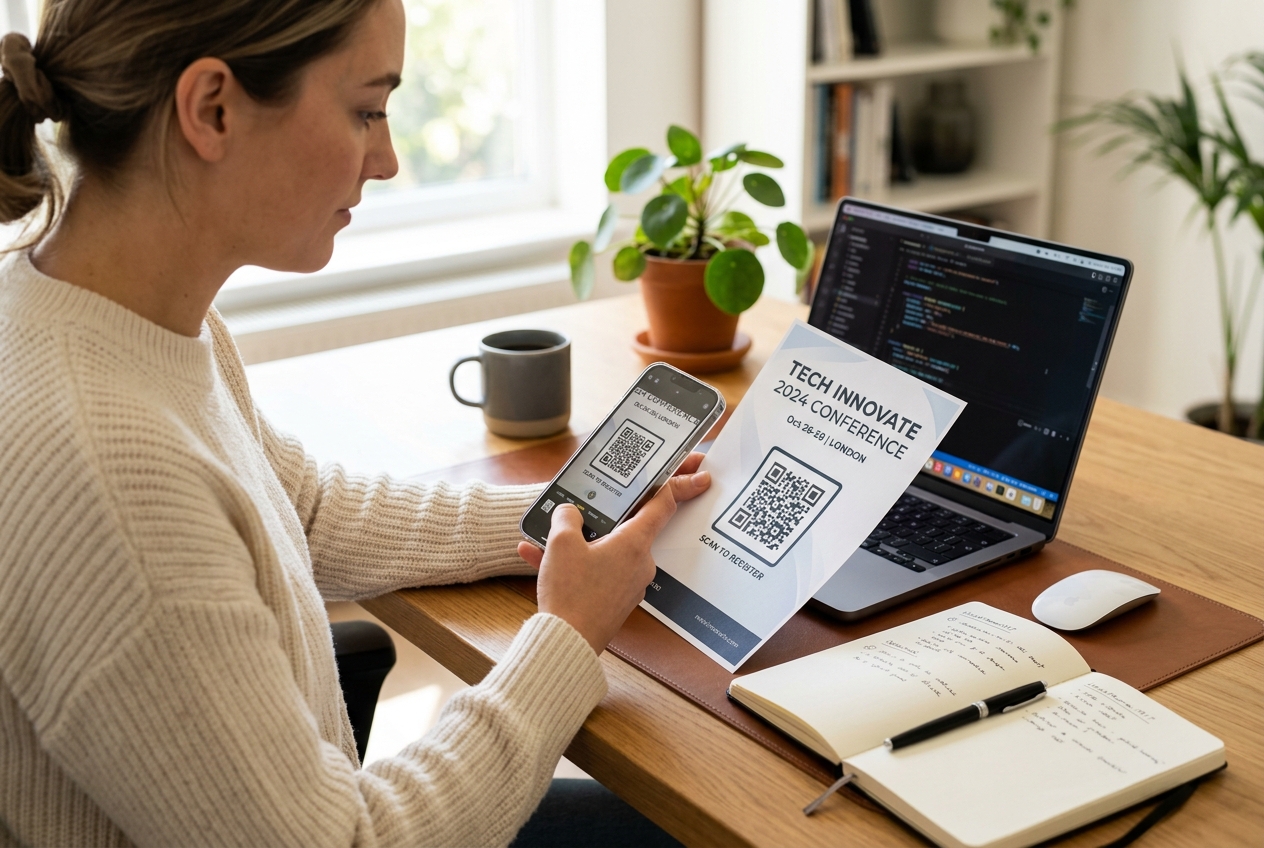
When hosting an event—whether it is a corporate webinar, a local community workshop, a retail grand opening, or a wedding—getting people to RSVP is only the first step. The real challenge is ensuring they actually show up. In a world full of distractions, busy schedules mean that even interested attendees can forget your event if it is not saved directly in their daily calendar.
This is where a Google Calendar QR code becomes a game-changer.
By scanning a single QR code, your attendees can instantly view your event details and add the schedule to their personal Google Calendar with a single tap. No manual typing, no timezone confusion, and no forgotten appointments.
Here is a complete step-by-step guide on how to create a QR code for your Google Calendar event to boost attendance and streamline coordination.
Why Use a Google Calendar QR Code?
Traditionally, to get an event onto a user’s calendar, you would send an email with an ICS file attachment or expect them to manually create the entry. On mobile devices, this adds significant friction.
A calendar QR code bridges this gap perfectly:
- Zero Friction: Scanners do not need to type the event title, date, time, location, or description. Everything is pre-filled.
- Improved Show-Up Rates: When your event is on their phone's calendar, they will receive automatic reminders, dramatically reducing no-shows.
- Versatile Offline Marketing: You can print the QR code on physical flyers, postcards, posters, and invitations, bringing offline audiences directly to your digital schedule.
- Real-Time Analytics: By using a dynamic qr code, you can track scan metrics and gauge interest before the event starts.
Step 1: Create a Public Google Calendar Event
Before generating your QR code, you need to create the event in Google Calendar and make sure it is accessible to the public.
- Open Google Calendar on your computer.
- Click Create in the top-left corner and select Event.
- Enter your event details: Title, date, start/end times, location (or video call link), and description.
- Set the calendar containing the event to Public:
- In the left sidebar of Google Calendar, hover over the calendar you are using, click the three dots, and choose Settings and sharing.
- Under Access permissions for events, check the box next to Make available to public. Note that you can set it to only show free/busy status, but for event invitations, you want the full event details visible.
- Save the event.
Step 2: Get the Event Link
Google Calendar provides a direct link to publish your event.
- Click on the event you just created in your calendar.
- Click the three vertical dots (More options) in the event popover.
- Select Publish event.
- In the modal that appears, copy the link under Link to event (it will look like a standard web URL starting with
https://calendar.google.com/calendar/event?...).
Step 3: Generate the QR Code with QR Zam
Now that you have the event URL, you can turn it into a high-quality QR code.
- Go to QR Zam.
- Choose the URL option for your QR code type.
- Paste your Google Calendar event link into the URL field.
- Select Dynamic QR Code: We highly recommend choosing a dynamic code. This lets you edit the calendar URL on the backend if your event time or venue changes, without needing to re-print your marketing materials. Dynamic codes also enable complete qr code tracking.
- Customize the design: Use our free qr code generator tools to add your company logo, choose brand colors, and select custom corner styles to make your custom qr code stand out.
- Click Generate and download your code in high-resolution PNG or print-ready SVG format.
Best Practices for Calendar QR Codes
To get the most out of your calendar marketing campaigns, keep these tips in mind:
1. Always Add a Call to Action (CTA)
A bare QR code offers no context. Always print a clear, action-oriented instruction next to or beneath your code. Use phrases like:
- "Scan to Add to Calendar"
- "Scan to Save the Date"
- "Scan to RSVP Instantly"
2. Double-Check Timezones
When creating the Google Calendar event, make sure the timezone is set correctly. Google Calendar automatically converts the event time to match the local timezone of the user scanning the code, preventing any confusion.
3. Test Before You Print
Always test your generated QR code using both iOS and Android devices under different lighting conditions. Ensure the link opens correctly and prompts the user to add the event to their calendar.
Creative Ways to Use Calendar QR Codes
- Direct Mail & Postcards: Include a QR code on physical invitations so recipients can add the event to their schedule as soon as they open their mail.
- Conference Banners & Slide Decks: Place the QR code on the final slide of your presentation or on rollup banners in the lobby so attendees can save upcoming workshop slots.
- Retail & Restaurant Flyers: Promote seasonal sales, grand openings, or special dining nights directly at the checkout counter.
- Real Estate Flyers: Let prospective buyers save open house schedules with a simple scan.
By integrating a Google Calendar QR code into your marketing toolkit, you make it incredibly simple for your audience to commit to your events, helping you drive higher attendance and maximize your event ROI.