


How to Create a QR Code for Email: Streamline Communication
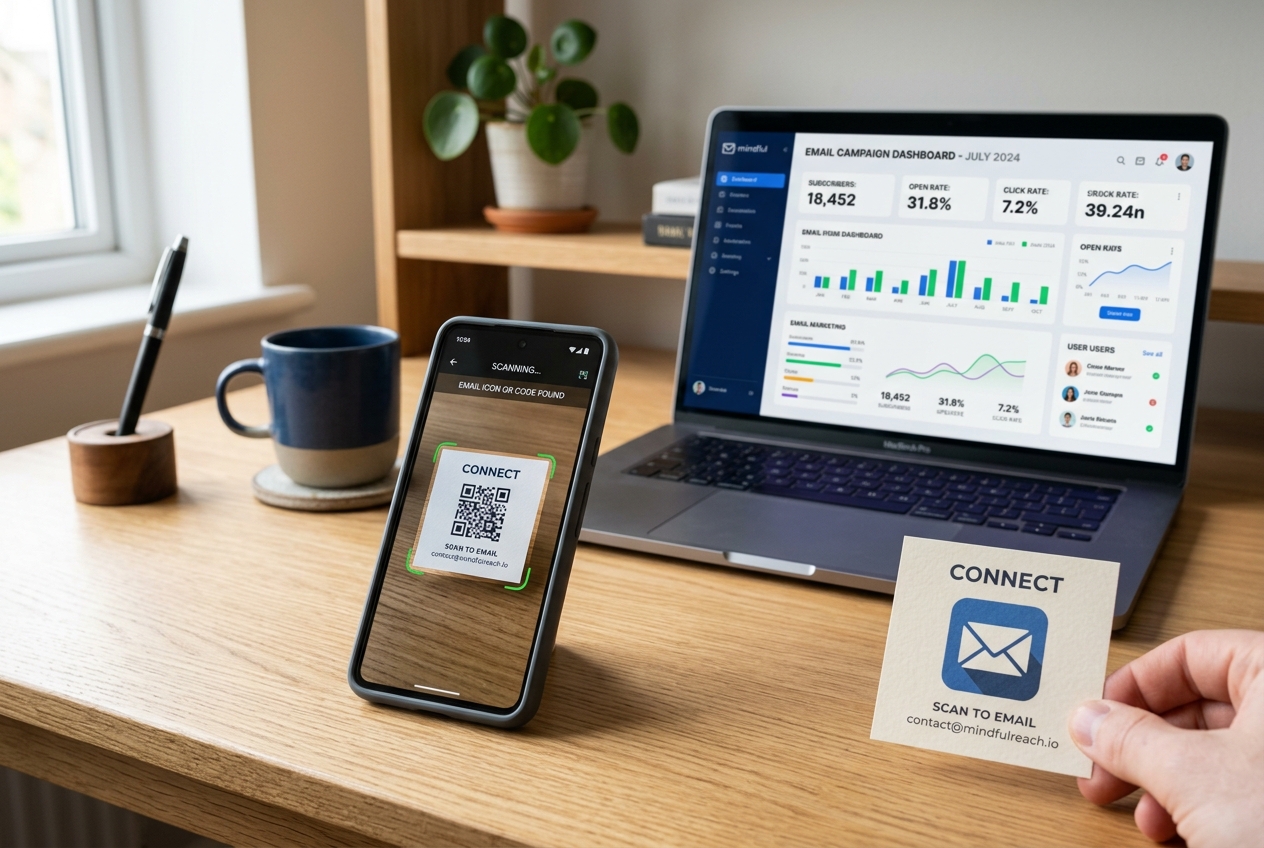
In today's digital environment, email remains the cornerstone of professional and customer-oriented communication. Whether you are seeking customer feedback, providing support, or accepting RSVP replies, getting users to manually copy or type an email address, draft a subject line, and write out a message is a slow process that leads to high drop-off rates.
An Email QR Code solves this by completely automating the email creation process.
When scanned, this intelligent code launches the user's native email client (like Gmail, Apple Mail, or Outlook), pre-fills the recipient's email address, writes a custom subject line, and inserts pre-written body text. The user only needs to hit the "send" button.
In this step-by-step guide, we will explore the powerful benefits of email QR codes and show you how to generate, customize, and deploy them using QR Zam.
What is an Email QR Code?
An email QR code is a static QR code that encodes standard mailto: protocol instructions. Under the hood, instead of pointing to a web URL, it directs the smartphone's operating system to trigger the default email application.
You can configure the QR code to prefill:
- To: The target recipient email address (e.g.,
[email protected]). - Subject: A clear subject line (e.g.,
Product Feedback - Order #12345). - Body: The draft content (e.g.,
Hi support team, I would like to inquire about...).
Key Benefits of Using Email QR Codes
By removing the friction of manual typing, email QR codes help businesses boost engagement and connect directly with their audience.
1. Frictionless Customer Support
Place an email QR code on product packaging or instruction manuals. If customers encounter an issue, they can scan it to instantly open a pre-filled support ticket draft. This helps them reach you faster and ensures you get the necessary information (like product models or order details) in the pre-written subject or body.
2. Error-Free Email Addresses
Manual typing on mobile keyboards leads to typos. A single misspelled character in your email address means you will never receive the customer's message. Email QR codes guarantee 100% accuracy, routing every email to the correct inbox.
3. Simplified RSVPs and Event Registrations
For weddings, corporate events, or community meetings, physical invitation cards can include an email QR code. Guests scan the code to instantly draft an RSVP response like "I will be attending the conference" without having to write anything themselves.
4. Interactive Feedback Loops
Gather reviews, feedback, or ideas directly from print ads, posters, or menus. A QR code labeled "Email Our CEO" or "Share Your Experience" gives customers a direct line of communication, increasing customer trust and loyalty.
How to Create a QR Code for Email on QR Zam
Generating a customized, professional email QR code takes less than two minutes on QR Zam. Follow these steps:
Step 1: Access the Dashboard
Log into your QR Zam account (or sign up for free if you haven't already).
Step 2: Choose the Email Campaign Type
From the list of available QR code formats, select Email.
Step 3: Enter Your Email Parameters
Input the following details:
- Email Address: The destination inbox where messages will be sent.
- Subject: The subject line that will appear in the draft (e.g., “Inquiry About Partnership”).
- Body Text: The pre-filled message layout. You can use prompts like “Hello, please send me more information regarding...” so users only need to fill in the blanks.
Step 4: Design and Brand Your QR Code
Make your QR code recognizable and trustworthy to increase scan rates:
- Brand Colors: Customize the code's foreground and background colors to match your company logo.
- Add a Logo: Upload your company logo or select a default envelope/email icon to display in the center of the code.
- Frames and CTAs: Choose a stylish frame with a clear call to action, such as "Scan to Email Us" or "Get in Touch".
Step 5: Test and Export
Always test your generated QR code before printing. Open your phone's camera, scan the preview on your screen, and verify that it launches your email app with the fields filled out correctly. Once satisfied, download the high-resolution file: PNG for digital displays or SVG vector format for high-quality printing.
Best Practices for Email QR Code Campaigns
To make the most of your campaigns, keep these practical tips in mind:
- State What the Scan Does: Because scanning will launch an email client, some users might find it unexpected. Always include a brief description near the code, such as: "Scan to open email draft."
- Keep it Legible: Ensure there is strong contrast between the QR code pixels and the background. Avoid dark backgrounds with dark pixels.
- Ensure Proper Size: On flyers or small cards, print the QR code at a minimum size of 2.5 x 2.5 cm so smartphone cameras can easily focus on it.
Enhance Your Business Communication Today
Email QR codes offer a fast, reliable, and highly interactive way to capture customer inquiries, feedback, and registrations from the physical world. By removing input barriers, you make it easy for your target audience to start a conversation.
Ready to simplify your customer outreach? Create your custom email QR code on QR Zam today!