


How to Create a Dynamic QR Code for Canva Designs, Flyers, and Presentations (Without Broken Print Links)
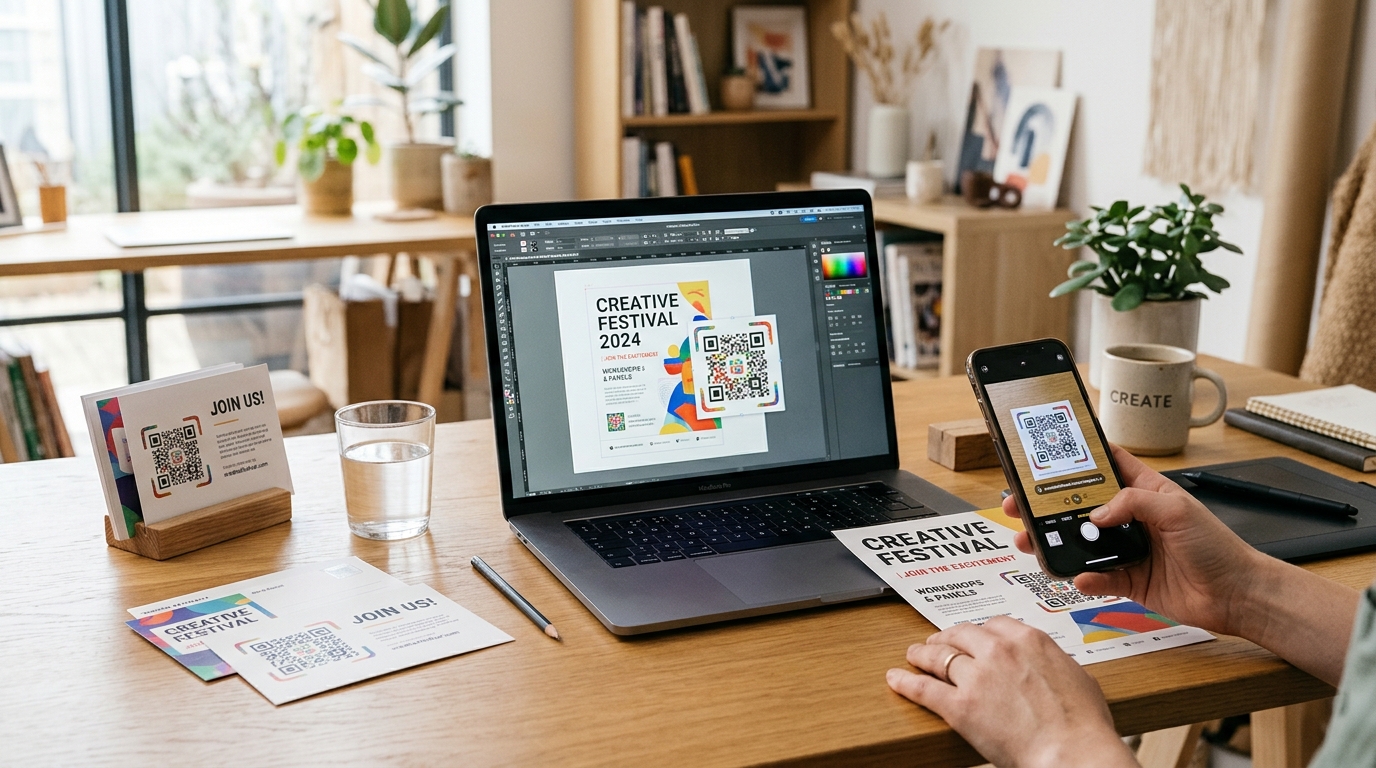
For millions of marketers, small business owners, event organizers, hospitality teams, and agencies, Canva is the go-to design workspace for creating print and digital collateral. Every day, teams use Canva to lay out restaurant table tents, real estate yard signs, trade show banners, product packaging inserts, business cards, and interactive pitch decks.
When it comes time to add a QR code to a layout, most users instinctively reach for Canva's built-in QR code generator inside the left-hand Apps panel, paste a URL, and send 5,000 flyers straight to the printer.
Weeks later, disaster strikes: the destination URL changes, a campaign landing page moves to a new slug, someone spots a typo in the UTM parameters, or the marketing director asks, "How many people actually scanned our flyer in Chicago versus Austin?"
That is when teams discover a costly limitation: Canva's native QR code generator only creates basic static QR codes. Once your design is printed, the destination URL is permanently locked into the black-and-white modules, and there is zero scan tracking behind the link.
Conversely, many teams also want to share live Canva designs—such as public view-only presentations, digital lookbooks, wedding programs, or brand templates—with offline audiences via a QR code, only to find that raw Canva share links are 85+ characters long and break whenever a design is duplicated.
By pairing Canva with dynamic QR codes powered by QR Zam, you get the best of both worlds: effortless drag-and-drop layout design in Canva combined with editable destination URLs, vector SVG export, custom QR styling with illustrated frames, and a real-time Scan Analytics Dashboard.
Why Canva's Built-In Static QR Code Generator Falls Short for Print Campaigns
Canva's native QR code tool was built as a quick utility for simple, permanent links. However, when you are investing money in commercial printing, packaging runs, or event signage, static codes introduce serious operational risks:
| Capability | Canva Built-In QR Code App | QR Zam Dynamic QR Code for Canva |
|---|---|---|
| Edit Destination URL After Printing | Impossible (static link is hard-coded forever) | Update target URL anytime in seconds without reprinting |
| Scan Analytics & Tracking | None (0 visibility into scan volume or locations) | Full Scan Analytics Dashboard: total/unique scans, time-series charts, country/city, device/OS/browser |
| Visual Customization | Basic foreground/background color & margin slider | Custom patterns, corner markers, color gradients, center logos, and illustrated CTA frames |
| Matrix Density with Long URLs | Extremely dense, hard-to-scan dots on long or UTM links | Compact routing link keeps the QR matrix clean, airy, and fast-scanning at any print size |
| Branded Custom Domains | Displays raw target URL only | Connect your own custom domain (e.g., go.yourbrand.com) for scanner trust |
| Password Protection | Not supported | Protect confidential pitch decks, VIP portals, or internal guides with a password gate |
| Built-In Mobile Landing Pages | Requires building & hosting an external webpage | Built-in Link-in-Bio, Digital Menu, Product Showcase, Google Review & Smart Feedback Gating, Event, vCard, Wi-Fi, and PDF pages |
| High-Volume Batch Creation | Manual one-by-one placement | Bulk QR Code Generation & ZIP batch export (SVG, PNG, JPG) |
1. The Reprint Trap of Static Canva QR Codes
Imagine printing 10,000 product box inserts or 500 acrylic restaurant table stands designed in Canva. If you used Canva's native QR generator and later redesign your website, switch booking platforms, or rotate a seasonal promotion, every printed code becomes a dead end. With a dynamic QR code from QR Zam, the visual QR graphic inside your Canva layout never changes—you simply log in to QR Zam and point the code to your new URL in five seconds.
2. Dense, Hard-to-Scan Matrices on Long Canva Links & UTM URLs
When you paste a long URL—such as an e-commerce product link with Google Analytics UTM parameters (?utm_source=canva_flyer&utm_medium=print&utm_campaign=fall_launch) or a raw Canva public view link—into a static generator, every single character must be encoded directly into the graphic. The resulting QR code turns into a dense mosaic of tiny squares that struggles to scan on textured paper, small business cards, or distant posters. Dynamic QR codes on QR Zam encode a short redirect URL, keeping the module pattern crisp and scannable from any distance.
3. Zero Offline Attribution Without Scan Analytics
When a print campaign underperforms—or sells out—your team needs data. Static codes leave you guessing. By placing a QR Zam dynamic code into your Canva artwork, you unlock the QR Zam Scan Analytics Dashboard, capturing total vs. unique scans, time-series scan charts by day and hour, geographic country and city breakdowns, and mobile device, OS, and browser telemetry—plus full compatibility with standard UTM query parameters for downstream attribution in your website's own Google Analytics.
Workflow 1: How to Add a Dynamic, Trackable QR Code to Any Canva Print Design
Whether you are designing a tri-fold brochure, a coffee shop loyalty card, an event badge, or a retail window poster in Canva, follow this five-step workflow to embed a high-converting dynamic QR code:
Step 1: Choose Your Dynamic QR Code or Built-In Landing Page in QR Zam
- Log in to your QR Zam dashboard and click Create QR Code.
- Select Dynamic URL to link to any webpage (with optional UTM parameters appended for your site's Google Analytics), or choose one of QR Zam's built-in QR landing pages:
- Digital Menu: Ideal for restaurant table tents, bar coasters, and cafe flyers designed in Canva.
- Google Review & Smart Feedback Gating: Perfect for receipt inserts, thank-you cards, and front-desk signage to capture 5-star reviews while privately gating negative feedback.
- Link-in-Bio: Consolidate your website, social profiles, and latest offers onto one mobile hub for flyers and creator merch.
- Product Showcase: Highlight product specs, galleries, pricing, and purchase links on hangtags and catalog pages.
- vCard: Add instant "Save to Contacts" functionality to Canva business cards and trade show lanyards.
- Event, Wi-Fi, or File/PDF: Share event details, guest Wi-Fi credentials, or downloadable PDFs effortlessly.
Step 2: Style the QR Code to Match Your Canva Brand Kit
Instead of settling for a plain black-and-white square that clashes with your Canva typography and color palette, use QR Zam's design studio to make the QR code a cohesive focal point:
- Colors & Gradients: Apply your exact hex codes from your Canva Brand Kit, or use a smooth two-tone linear or radial gradient across the QR pattern.
- Custom Patterns & Corner Markers: Choose rounded dots, classy diamonds, or smooth liquid modules paired with distinctive finder eye frames.
- Center Logo: Upload your brand icon or emblem directly into the center of the QR matrix.
- Illustrated Frames & CTAs: Select from QR Zam's classic or illustrated frames with clear call-to-action ribbons (such as
SCAN MENU,GET 15% OFF, orLEAVE A REVIEW) proven to lift scan rates.
Step 3: Export as Vector SVG or High-Resolution PNG
For commercial print projects in Canva (such as Canva Print flyers, packaging, or large-format banners), image sharpness is critical:
- Export your QR Zam code in SVG (Scalable Vector Graphics) format if you want infinite, razor-sharp resolution at any size inside Canva, or choose high-resolution PNG / JPG.
- Because SVG files preserve vector paths, you can scale your QR code from a 2 cm business card corner up to a 2-meter trade show backdrop in Canva with zero pixelation or blur.
Step 4: Upload and Position Inside Your Canva Layout
- Open your project in Canva and click Uploads in the left sidebar.
- Drag and drop your downloaded QR Zam SVG or PNG file into the Uploads panel and click to place it onto your canvas.
- Follow these print layout rules inside Canva:
- Maintain the Quiet Zone: Keep a clean margin around the QR code free of overlapping text, floral illustrations, or dark photo backgrounds.
- Minimum Print Size: Size the QR code to at least 2 x 2 cm (0.8 x 0.8 inches) for close-range items (business cards, postcards, menus) and follow the 10:1 viewing distance ratio for posters and signs.
- Avoid Low-Contrast Transparency: Never lower the opacity slider of a QR code layer in Canva—high contrast between the dark modules and light background is essential for instant camera recognition.
Step 5: Test Scan Before Sending to Canva Print
Before exporting your final PDF Print (CMYK / Crop Marks & Bleed) file from Canva, scan the on-screen preview with both an iOS and an Android smartphone camera. Confirm that your destination page loads immediately and appears in your QR Zam Scan Analytics Dashboard.
Workflow 2: How to Create a Dynamic QR Code For a Live Canva Presentation, Lookbook, or Template
Just as often, Canva isn't only where you design the print piece—Canva is the destination itself. Teams frequently publish view-only Canva presentations, interactive digital catalogs, event programs, restaurant menus, and shareable Canva templates to the web.
However, raw Canva public view links look like this:
https://www.canva.com/design/DAGTx9Kp2mQ/8vN4rL1wXzY9qP3mK7bJcA/view?utm_content=DAGTx9Kp2mQ&utm_campaign=designshare
Turning that raw Canva URL into a dynamic QR code on QR Zam solves three major headaches:
- Swap Decks Without Reprinting: If you duplicate a Canva presentation for a new client pitch, update a seasonal catalog in a new Canva file, or replace a broken template link, you simply paste the new Canva
viewlink into QR Zam. Every printed handout, badge, or display stand automatically opens the updated Canva design. - Custom Domain Branding: Connect your custom domain in QR Zam (for example,
deck.youragency.com/keynote) so conference attendees see your professional brand URL instead of a crypticcanva.com/design/DAG...string when scanning. - Password-Protected Canva Decks: Need to share a confidential investor pitch deck, internal training presentation, or wholesale lookbook hosted on Canva? Enable Password Protection on your QR Zam code so only authorized recipients with the passcode can view the presentation.
Pro Tip: Check Your Canva Link Permissions Before Generating
When copying a link from Canva to paste into QR Zam:
- Click Share > Public view link (for read-only presentations, portfolios, and lookbooks) so scanners can view the slides immediately in their mobile browser without needing to log in to a Canva account.
- NEVER copy the browser address bar URL while in edit mode (
/edit), which locks out external visitors unless you specifically intend to share a Template link with other designers.
Scaling Multi-Design Canva Campaigns with Bulk QR Generation
If you are a marketing agency, franchise operator, or event manager producing dozens of localized Canva flyers, table numbers, or employee business cards, creating QR codes one by one slows down production.
With QR Zam's Bulk QR Code Generator, your team can:
- Upload a CSV containing dozens or hundreds of destination URLs and campaign labels (for example, 50 regional store promotion links or 100 individual sales rep vCard/landing links).
- Apply consistent custom QR styling—your brand colors, gradients, patterns, center logo, and illustrated frame—across the entire batch automatically.
- Download all generated QR codes in a single ZIP batch export (SVG, PNG, or JPG) and drop the folder directly into your Canva Uploads library for rapid layout assembly.
High-Impact Use Cases for Combining Canva + QR Zam
| Industry / Campaign | Designed in Canva | Powered by QR Zam | Measurable Business Outcome |
|---|---|---|---|
| 1. Restaurants & Cafes | Acrylic table tents, takeout bag stickers, coasters | Built-in Digital Menu & Google Review / Smart Feedback Gating landing pages | Update daily specials & pricing without reprinting table tents; boost 5-star Google reviews |
| 2. Real Estate & Property | Yard sign riders, open-house flyers, post-card mailers | Dynamic URL to virtual 3D tour or Product Showcase page + Custom Domain | Reassign the same printed yard sign QR code to a new property listing once sold |
| 3. Retail & DTC Packaging | Unboxing thank-you inserts, hangtags, care cards | File/PDF manual, Product Showcase, or UTM-tagged reorder link | Track scan-to-reorder attribution by city and device OS in Scan Analytics Dashboard |
| 4. Conferences & Keynote Speakers | Presentation slides, lanyard badges, booth backdrops | Event landing page, vCard, or password-protected Canva slide deck link | Capture attendee leads from 15 meters away; measure scan spikes during each session |
| 5. Local Services & Salons | Appointment cards, window decals, referral postcards | Link-in-Bio booking hub & Wi-Fi guest access QR code | Turn walk-by foot traffic into booked appointments 24/7 |
Frequently Asked Questions (FAQs)
1. Can I edit a QR code created inside Canva's native QR generator after printing?
No. Canva's built-in QR code app generates static QR codes only. Because the destination URL is encoded directly into the dot pattern, it cannot be changed once printed. To edit your destination URL after printing without changing the visual QR code on your Canva design, generate a dynamic QR code on QR Zam and upload the SVG or PNG into Canva.
2. Should I upload PNG or SVG QR codes into Canva?
For digital graphics (Instagram stories, presentation slides, email banners), a high-resolution PNG works great. For anything going to physical print—business cards, flyers, packaging, brochures, or signage—always upload an SVG exported from QR Zam so Canva preserves crisp vector edges at any print resolution.
3. How can I track how many people scan the QR code on my Canva flyer?
Canva does not track scans on its native static QR codes. When you place a QR Zam dynamic QR code into your Canva flyer, every scan is logged in the QR Zam Scan Analytics Dashboard, showing total scans, unique visitors, time-series scan charts over time, geographic distribution by country and city, and mobile device/OS/browser breakdowns. You can also append standard UTM parameters (utm_source, utm_medium, utm_campaign) to your target URL so your website's Google Analytics attributes traffic and conversions accurately.
4. Can I use a custom frame and logo on my QR code inside Canva?
Yes! In QR Zam, you can customize your QR code with brand colors, gradients, module patterns, corner markers, a center logo, and classic or illustrated CTA frames before exporting the SVG or PNG into your Canva layout.
Upgrade Your Canva Print & Digital Designs with QR Zam
Canva makes it effortless to design eye-catching flyers, packaging, business cards, and presentations—and QR Zam ensures the QR codes inside those designs are just as dynamic, measurable, and brand-safe. Stop risking expensive reprints on uneditable static codes and start turning every Canva layout into a trackable conversion channel.
Ready to add dynamic, custom-styled QR codes to your next Canva project? Create your free dynamic QR code on QR Zam today and export print-ready SVG and PNG files in seconds.