


How to Create a QR Code for App Downloads: Simplify Installs with Smart Routing
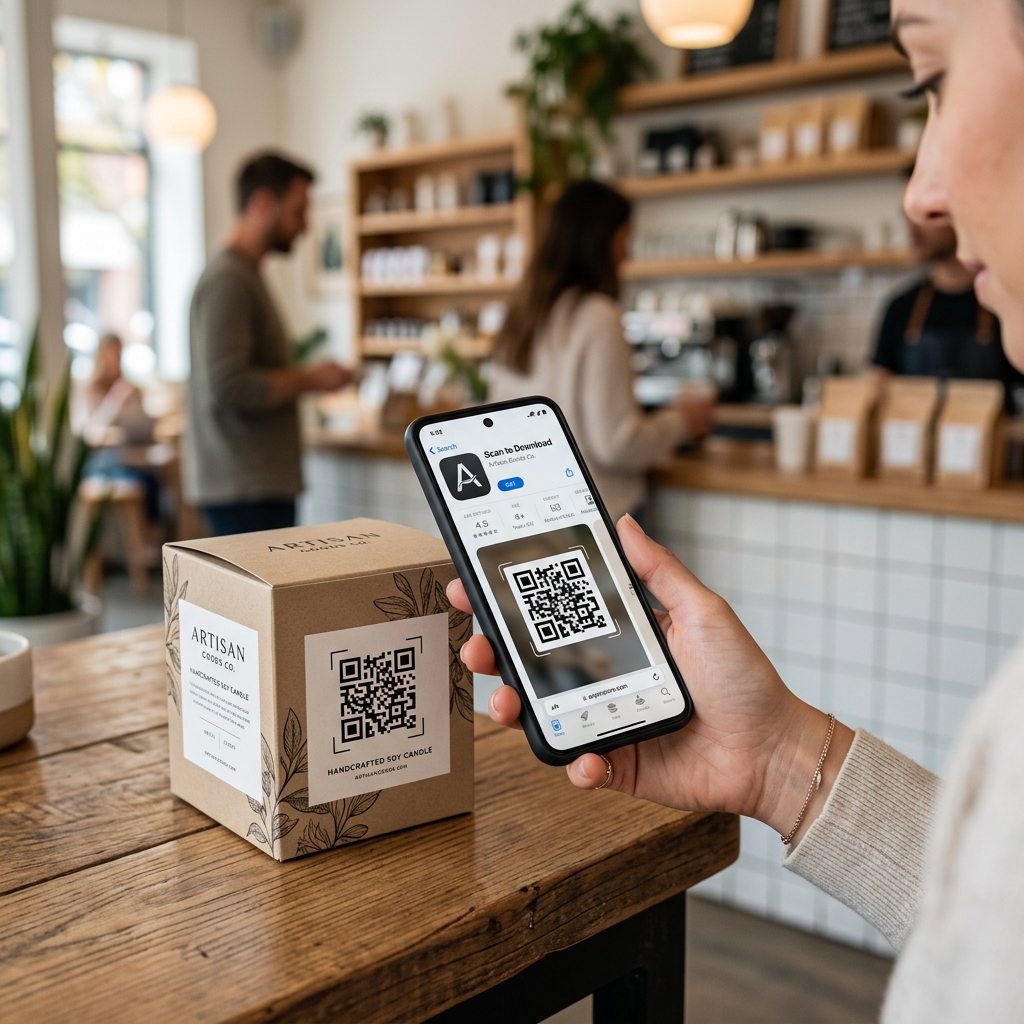
If you have launched a mobile application, getting users to download it is your top priority. But how do you bridge the gap between offline marketing—like posters, packaging, and flyers—and the digital app stores?
The answer is an app download QR code.
However, many businesses make the mistake of printing two separate QR codes: one for the Apple App Store and another for the Google Play Store. This clutters your marketing materials, confuses users, and takes up twice as much space.
With QR Zam, you can create a single, smart QR code that automatically detects whether a user scans it with an iPhone or an Android device and redirects them to the correct store. Here is how to set it up and optimize your app store campaigns.
Why You Need a Single QR Code for App Downloads
Using a single, smart QR code for your mobile app offers several major advantages over static or separate codes:
1. Seamless User Experience
Scanning a QR code should be effortless. If an iPhone user scans a QR code and lands on a generic webpage or the Google Play Store, they will likely abandon the download. Smart routing ensures they land directly on the correct app store page with zero extra clicks.
2. Clean Design and Saved Space
Whether you are placing QR codes on product packaging, business cards, or billboard ads, space is premium. Printing one clean QR code looks much more professional and modern than squeezing two side-by-side.
3. Dynamic Flexibility
What happens if you launch your app on a new platform (like the Huawei AppGallery) or want to change your fallback destination to a web promo page? With a dynamic QR code, you can update the redirect links at any time without changing or reprinting the physical QR code.
4. Advanced Analytics & ROI Tracking
QR Zam provides detailed scan analytics. You can track exactly how many people scanned the code, which device types (iOS vs. Android) are most popular among your offline audience, and which locations or marketing campaigns are driving the most installs.
How to Set Up an App Store QR Code on QR Zam
Setting up your smart app download QR code takes less than two minutes. Follow these simple steps:
Step 1: Collect Your App Store Links
Before starting, copy the direct URLs to your app in both stores:
- Apple App Store URL (e.g.,
https://apps.apple.com/app/id...) - Google Play Store URL (e.g.,
https://play.google.com/store/apps/details?id...)
Step 2: Create a Dynamic URL QR Code
- Log into your QR Zam dashboard.
- Select the URL QR code type.
- Enter a fallback URL (such as your app's official homepage or landing page) in the website field.
Step 3: Enable Device-Based Smart Routing
- Scroll down to the Advanced Settings and toggle on Smart Routing.
- Add a new rule: Choose Device/OS as the condition.
- Set the rule: If the device is iOS, redirect to your Apple App Store URL.
- Add another rule: If the device is Android, redirect to your Google Play Store URL.
- Set your general website as the Fallback URL for any other device types (like desktop browsers).
Step 4: Customize the QR Code Design
Make your QR code stand out by customizing the design to match your app's brand identity:
- Colors: Choose high-contrast colors that match your app's palette.
- Logo: Upload your app icon and place it in the center of the QR code to build brand trust.
- Frame: Add a clear Call-to-Action (CTA) frame like "Scan to Download" or "Get Our App".
Step 5: Download and Test
Always download your QR code in high-resolution vector format (SVG) for printing. Before sending it to the printer, test it with both an iPhone and an Android phone to verify that the smart routing redirects as expected.
Best Practices for App Install QR Campaigns
To maximize your app downloads, keep these marketing best practices in mind:
- Size Matters: Ensure your QR code is at least 2 x 2 cm on small items like business cards, and much larger on flyers or posters, so it can be scanned easily from a distance.
- Clear Call to Action: Never print a naked QR code. Always add text like "Scan to install our app" so users know what to expect.
- Perfect Placement: Place the QR code at eye level in locations where users have a few seconds to scan, such as restaurant tables, retail checkouts, or product packaging.
- A/B Test Your Landing Pages: If you don't want to redirect directly to the app store, redirect users to a custom landing page. You can use QR Zam's smart routing to split traffic 50/50 and see which landing page version converts better.
Get Started with QR Zam
Simplify your mobile app marketing and boost your download rates today. QR Zam's Smart Routing and Dynamic Analytics are available on our premium plans, giving you all the tools you need to build and track high-converting campaigns.
Ready to launch? Sign up for a QR Zam account and create your smart app download QR code now!