


How to Create a LinkedIn QR Code: The Ultimate Networking Guide
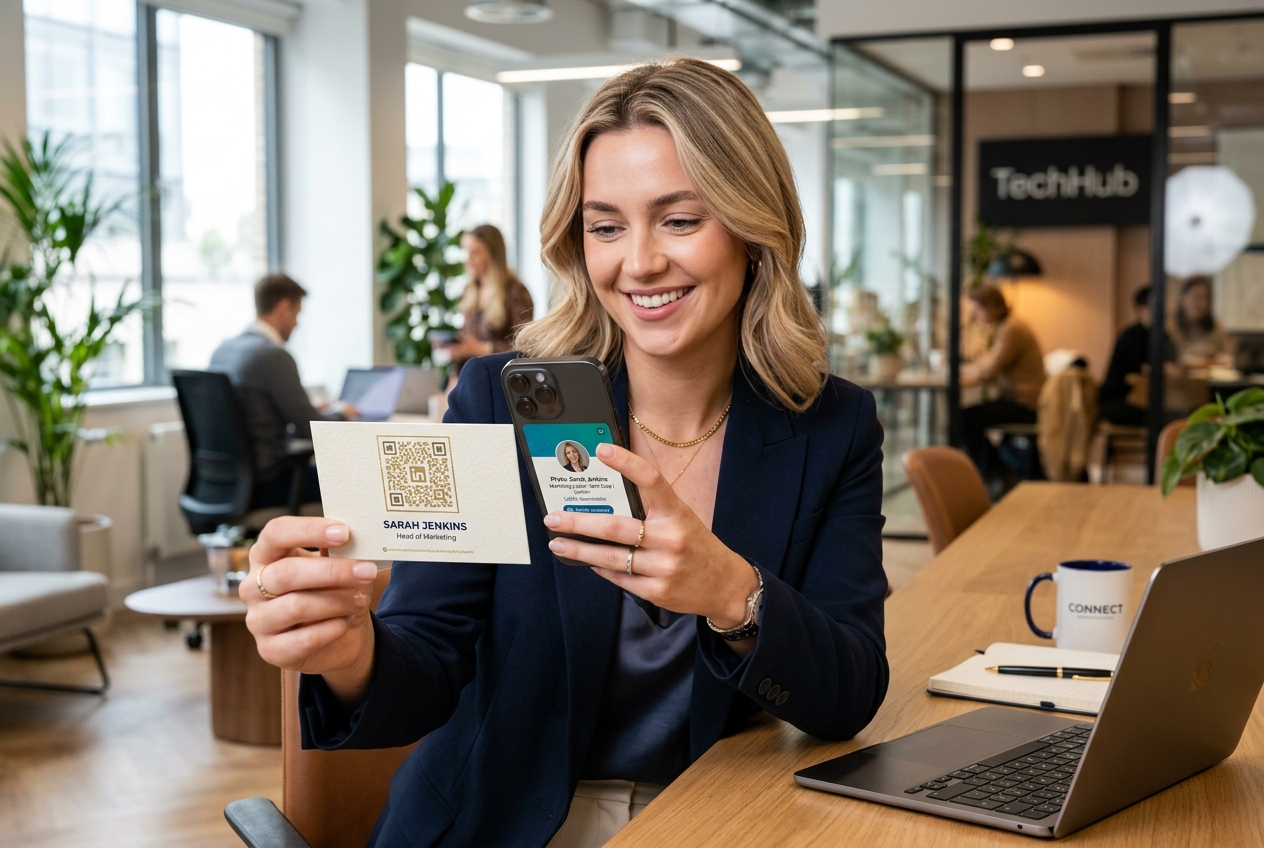
In today's fast-paced business environment, networking has moved far beyond exchanging paper business cards that end up lost in a drawer. Modern professionals, salespeople, and founders need a seamless way to transition offline conversations into lasting online connections.
This is where a LinkedIn QR code becomes an essential tool. By embedding your professional profile link into a scannable code, you make it effortless for prospects, partners, and recruiters to connect with you instantly.
In this ultimate guide, we’ll show you how to generate a custom LinkedIn QR code, compare static and dynamic options, and share best practices to boost your offline networking ROI.
Why You Need a LinkedIn QR Code
Your LinkedIn profile is your digital resume, portfolio, and professional brand hub. A QR code bridges the physical and digital worlds, allowing you to share your profile in seconds. Key benefits include:
- Ditch the Typos: No need to spell out complex names or custom URLs.
- Stand Out on Resumes: A professional QR code on your printed CV shows you are forward-thinking and tech-savvy.
- Level Up Business Cards: Replace generic paper cards with smart cards that lead straight to your active professional network.
- Boost Event ROI: Display your QR code on slides during presentations, event badges, or booth banners.
Static vs. Dynamic QR Codes for LinkedIn
Before creating your code, it's crucial to understand the difference between static and dynamic options.
Static LinkedIn QR Codes (The Default Option)
A static QR code encodes your LinkedIn URL directly into the QR pattern.
- Pros: It is permanent and works forever.
- Cons: If you customize your LinkedIn URL (e.g., changing your username), the QR code breaks. You get zero qr code tracking metrics or scan analytics. The QR pattern is dense, making it harder to scan at small sizes.
Dynamic LinkedIn QR Codes (The Professional Choice)
A dynamic QR code uses a short redirect link. The QR pattern remains clean and easy to scan.
- Pros: If you change your LinkedIn username or decide to redirect the QR code to your personal website or company page, you can update it in seconds without reprinting. You get detailed qr code analytics (number of scans, location, time, and device used).
- Cons: Requires a high-quality dynamic qr code platform like QR Zam.
How to Create a LinkedIn QR Code with QR Zam
Creating a custom, professional QR code is simple. Follow these steps:
Step 1: Copy Your LinkedIn Profile URL
Open your LinkedIn app or desktop browser, go to your profile page, and copy your public profile URL (e.g., https://www.linkedin.com/in/yourname).
Step 2: Choose Your QR Code Generator
Go to QR Zam, the leading free qr code generator and management platform. Select the URL option.
Step 3: Insert Your URL and Enable Dynamic Tracking
Paste your LinkedIn URL into the input field. Make sure to toggle Dynamic QR Code on. This unlocks qr code tracking and gives you the flexibility to edit the destination link later.
Step 4: Design a Custom QR Code
Make your code match your personal brand. With QR Zam, you can:
- Change the colors from standard black-and-white to a sleek corporate blue.
- Customize the eye shapes and pattern style.
- Add the LinkedIn logo to the center of the code as a trust signal.
Step 5: Download and Print
Download your QR code in high-resolution formats. Use SVG for printed materials like banners and business cards, and PNG for digital signatures or resumes.
Where to Place Your LinkedIn QR Code
To maximize your networking opportunities, place your LinkedIn QR code where people can easily see and scan it:
- Printed Business Cards: Place a small, high-contrast QR code on the back of your card.
- Resumes & CVs: Insert a clean QR code in the contact details header.
- Email Signatures: Add a small QR code with a call-to-action (CTA) like "Scan to connect on LinkedIn."
- Presentation Slides: End your slide deck with a large QR code on the "Thank You" slide to capture audience connections instantly.
- Trade Show Badges: Print your QR code directly on your event name tag or booth flyer.
Best Practices for Scanning Success
- Include a Call-to-Action (CTA): Always add text below your code, such as "Scan to Connect" or "Let's Network."
- Size Matters: Ensure your QR code is at least 2 x 2 cm (0.8 x 0.8 inches) when printed.
- Contrast is Key: Keep the foreground color significantly darker than the background.
- Test Before Printing: Always scan your QR code with multiple smartphones before committing to a print run.
Measure and Scale Your Networking with QR Zam
Whether you are an individual builder or managing a team of sales executives, tracking your offline marketing is critical. QR Zam provides powerful team management tools and an ai qr code generator to create stunning, brand-compliant codes at scale.
Ready to level up your professional networking? Sign up for QR Zam today and create your first dynamic LinkedIn QR code.